
You did the logging. Thirty days of it, in whatever form the days allowed — a notes app, the back of a planner, the app on your phone. Every check-in, every rough afternoon, every refused lunch got written down, mostly one-handed, mostly while something else was happening.
And nobody has read it. Including you.
That is the normal outcome, and it has nothing to do with discipline. Logging happens in the moment, when the thing is in front of you and there is a place to put it. Reading back needs a quiet minute, and a caregiving day does not hand those out. So the log grows, the looking never arrives, and the entries do their one job — getting the moment out of your head — and then sit there.
The second job of a log takes about four minutes, and it is where most of the value was hiding. A month of entries, read with four specific questions, will usually tell you something thirty separate days could not. Here are the four minutes on paper, and then the screen in CareHaven that does the same reading for you.
Why the log needs a second reader
In our house the log existed long before anyone sat down with it. My wife kept it: the fever logs going back to when our son was a baby, the brand rules, the temperature rules, the which-water-from-which-container rules. I only understood how much of it there was when I realized how much she had been carrying without my knowing the details.
And the reason the log earned its keep was the same every time. When something went wrong, the only way to give the pediatrician or the GI something they could act on was to have already been keeping a log nobody asked for, going back a week.
Both of those are the log doing its first job, remembering so a person does not have to. The second job is different. Standing in the middle of a hard Tuesday afternoon, it feels like a hard Tuesday. Only the list can show you it was the fourth 2 PM in a row.
The four-minute second look
This works with a notebook, a notes app, or a spreadsheet, and it wants a window rather than the whole history. Take the last thirty days and leave the rest closed.
One minute: when. Scan only the times on the hard entries — the tense check-ins, the meltdowns, the refusals, whatever "hard" means in your house. Ignore the words and read the clock. You are looking for an hour that keeps turning up, like right after lunch, or the half hour before pickup on school days.
One minute: which days. Count the hard entries by day of the week; a tally in the margin is enough. Thursdays running heavier than Mondays is real information, and so is the morning after a sleepover.
One minute: what came just before. For each hard entry, read only the entry above it. A short night, or a change of plans that arrived without warning. Nobody is asking you to prove cause. The question is what your own pages keep putting next to the hard moments, and whether it is the same thing more than once.
One minute: what changed. Compare this month to the last one in a single line: a new classroom, a different aide, a schedule that moved, the week everyone had a cold. Whoever reads your notes next will want to know what made this stretch different.
Then write it down, two or three sentences, with the date on it. Made-up numbers, real shape:
Twelve of the eighteen tense check-ins this month landed between 1 and 3 PM. Most of those days had no nap. Thursdays ran worse than any other day. Since last month: fewer meltdowns overall, more of them in the afternoon.
That paragraph is the whole return on thirty days of logging. It fits in a text to the other parent, it fits at the top of an appointment note, and it fits in your own head in a way thirty separate days never will.
What a pattern is for
Time-of-day patterns are the useful kind, because you can plan around a clock.
- Move what can move. If 1 to 3 PM is the rough window, that is the wrong slot for the pharmacy run or the phone call with the insurance company. Put those in the morning and give the afternoon nothing extra to carry.
- Ask the people who own that hour. If the cluster falls inside the school day, ask the teacher what happens at 1 PM — lunch ends, recess ends, a transition nobody thought to mention. A specific question gets answered in a way a general worry does not.
- Hand it to the person who can act on it. A therapist or a doctor can do more with "twelve of eighteen, between 1 and 3" than with "afternoons are hard." Put the sentence at the top of your notes for the next visit and read it first.
None of this needs the pattern to explain itself. Moving an errand costs nothing, and if the afternoon gets easier, you learned something for the price of a calendar change.
If the log lives in CareHaven
CareHaven is the app I am building to carry exactly this kind of thing, and its Patterns screen does the four-minute read for you: it reads everything you log for one person and turns the clusters into cards with charts. These steps assume you have never opened it.
Patterns only knows what you log, so the entries come first. Every log in the app is described on the Daily tracking help page; the two that feed the cards below are the quickest:
- Tap the + button at the bottom of the screen, just right of center, and choose Regulation check-in. Pick one of the five levels, from calm to crisis, add a short note if you want, and save. Log it at the same few moments each day, like home from school and before bed, and a month of them is a real dataset.
- For a rough moment, tap + and choose Behavior. Pick the kind — a stim, a tantrum or meltdown, a positive behavior — add a line saying what happened, and tap Save.
Every entry lands on the Home timeline in the order it happened, and the chips above the timeline summarize the day: how many feedings and when the last one was, and the most recent check-in as Mood. That screen is your notebook. Now the second look:
- Tap the Main Menu button at the bottom left of the screen, then tap Track.
- On the Track screen, scroll to the Analytics section and tap Insights. Its subtitle reads "Patterns, behavior insights, Change Watch, and Lumi."
- On the Insights screen, tap Patterns, the row whose subtitle reads "Charts from your log." If a card at the top of that screen already names a pattern, tapping the card opens the same place.
- If Track is missing from your Main Menu, or Insights is missing from Track, tap the Menu button in the top-left corner (three lines), then Settings, then Menus: Main Menu shows or hides hubs, and Hub sub-sections controls what appears inside one.
-
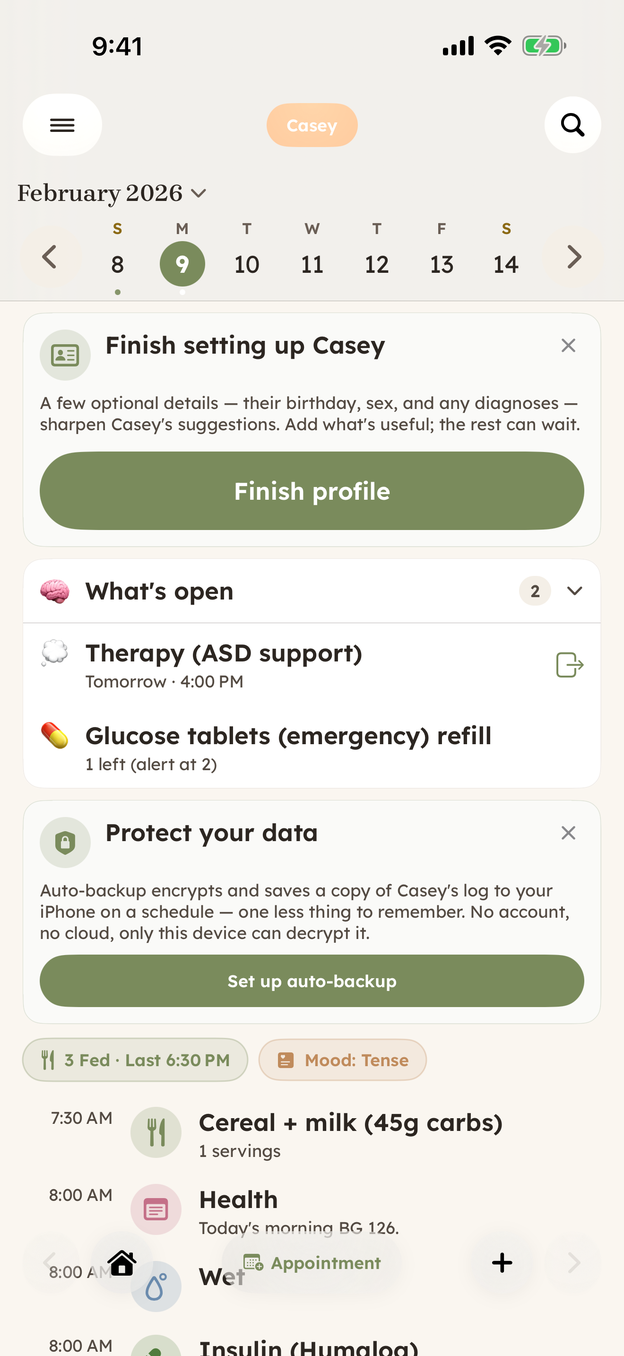
Home on demo data: the day's entries in order, with the day's summary chips above them. A month of days like this is what Patterns reads. The Main Menu button is at the bottom left, and the + button is just right of center. -
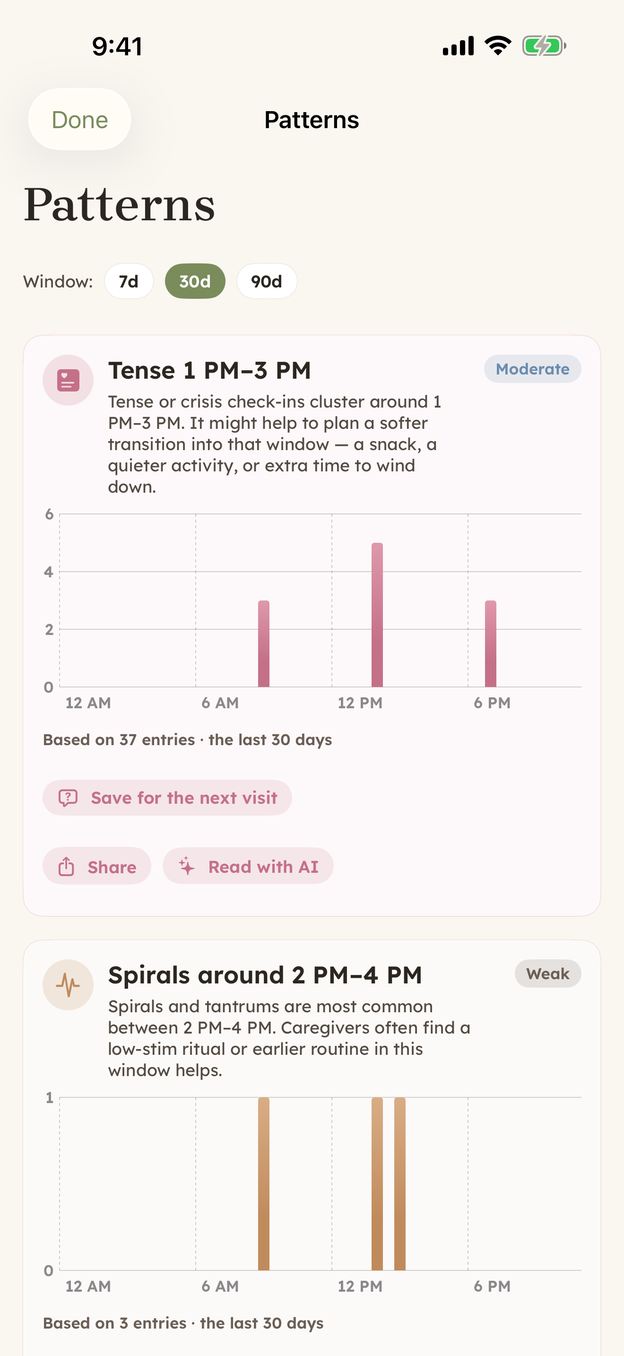
Patterns on demo data. Read the evidence line before the title: thirty-seven entries is a pattern, three entries is a hunch, and the badge in the corner says which.
Reading the cards
Patterns opens as its own screen, with Done in the top-left to close it. Under the title, the Window chips — 7d, 30d, 90d — set how far back it reads. It opens on 30 days, which is the month this post is about. Tap 90d when you want to know whether this month is unusual or just this month.
Every card has the same anatomy, and it is the four-minute read done for you:
- A title that is the finding itself: "Tense 1 PM–3 PM," or "Spirals around 2 PM–4 PM."
- A summary sentence in plain language, sometimes with a gentle suggestion — the tense card in the screenshot suggests a softer transition into that window, a snack or a quieter activity.
- A chart, here a bar chart of entries by hour of the day, so you can see the shape instead of taking the title's word for it.
- The evidence line: "Based on 37 entries · the last 30 days." This is the line to read first.
- A strength badge in the top-right corner — Weak, Moderate, or Strong.
The two cards in the screenshot are a good lesson in the badge. The tense-afternoon card is Moderate and rests on thirty-seven check-ins. The spirals card says almost the same thing about almost the same hours, and it is Weak, because it rests on three entries. Three of anything is a hunch, and the app labels it as one rather than letting a chart look more certain than the data behind it. Keep logging, and a hunch either firms up or quietly goes away.
If nothing shows yet, the screen says Not enough log yet and notes that patterns start showing up after a couple of weeks of feedings, behaviors, sleep, and check-ins, with no minimum to start. After a burst of logging, pull down on the screen to refresh it; a small Updating chip shows while it recomputes.
At the bottom, in small print: these are patterns read from your own log, not medical advice, and anything that worries you belongs with a clinician. The app is doing arithmetic on what you wrote down and showing its work in the entry count; what the arithmetic means is a question for a person.
What to do with a card
Three buttons sit under every card, and they are the "what a pattern is for" list from above, built in:
- Save for the next visit files the card as a question for your next appointment. The button flips to Saved to Visit prep, and the question — title, finding, and window — waits there instead of in your memory and is sitting on the appointment the day before the visit. The appointment side got a post of its own.
- Share hands a plain-text version of the card — the title, the finding, and the evidence line — to the iPhone share sheet. Text it to the other parent, or to the therapist before Thursday, and the pattern travels as three lines instead of a screenshot.
- Read with AI appears only when AI is turned on in the app, and opens two or three sentences of commentary on the card, with the chart numbers left out on purpose so the commentary never argues with the arithmetic. The card is complete without it.
Thirty days of entries already exist, in your notebook or on your phone. The four minutes are the part nobody scheduled, and you can do them tonight with the notebook open or with the Window chip set to 30d. Either way, read the clock first.
CareHaven is in open beta
Everything above is in the app. It is free while in beta, all your care data stays on your device, and you can walk away with a full backup at any time.
Join the iPhone beta →