Advocacy & goals
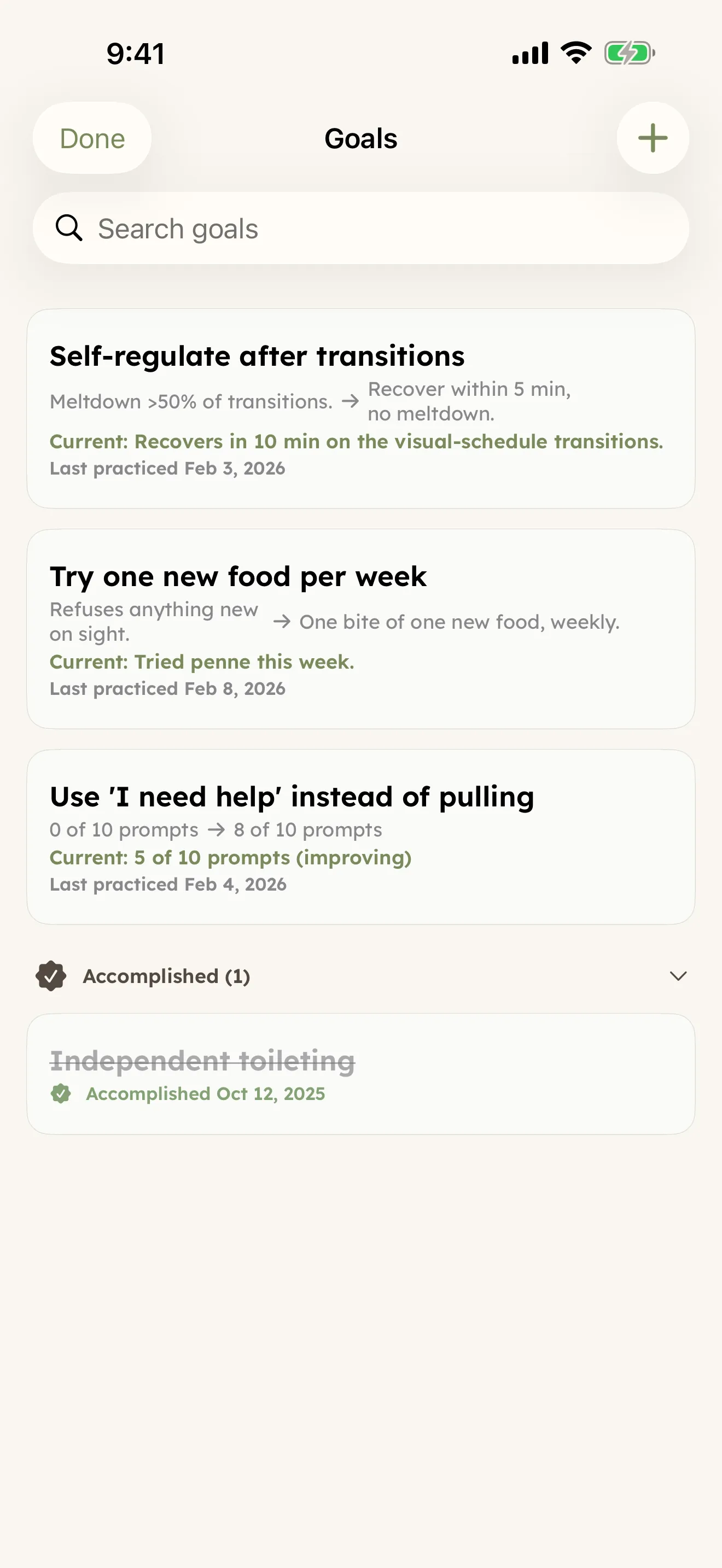
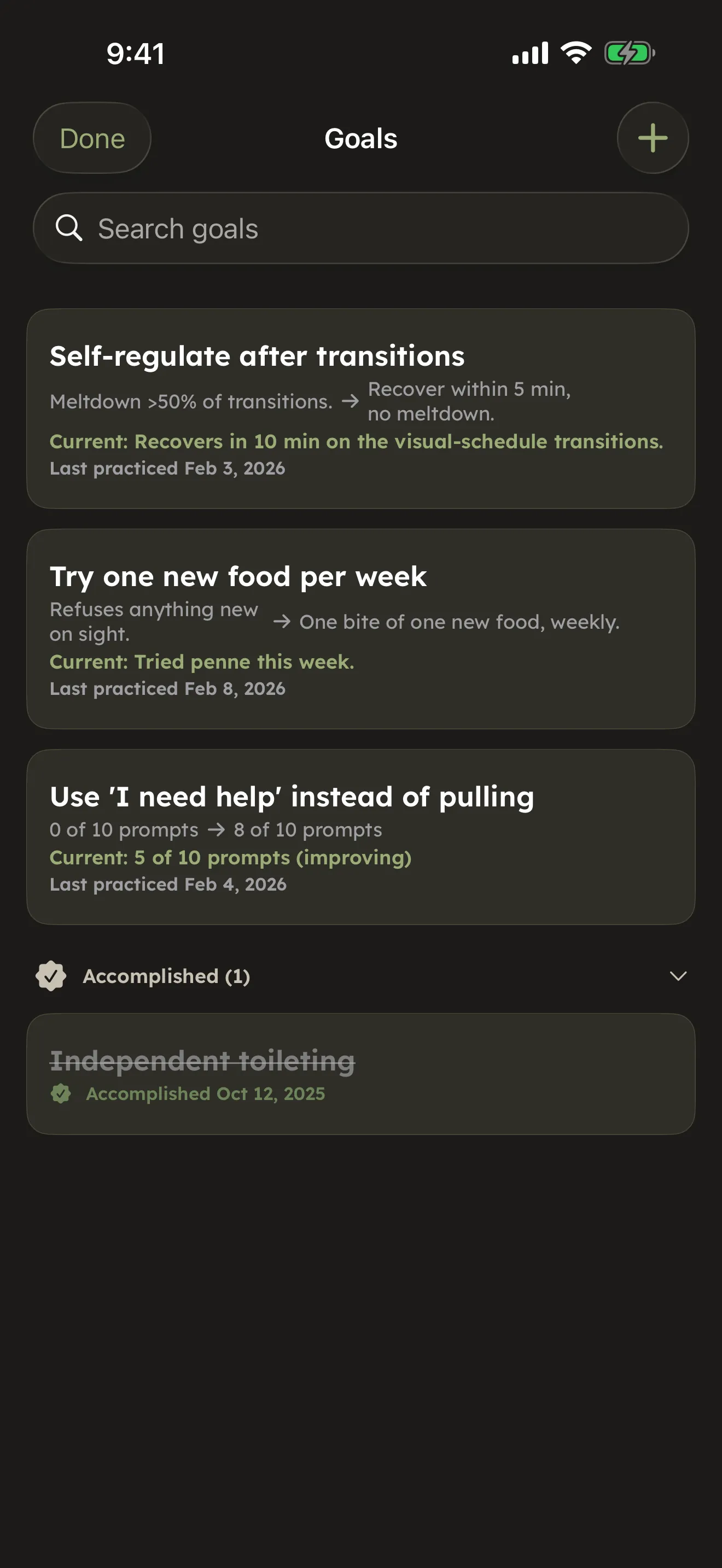
When you care for someone with complex needs, a lot of your time goes to the world around them — schools, therapists, doctors, insurance, the people who step in to help. CareHaven gives you a calm place to hold all of it. You track the goals they're working toward, save the wins, write down the signals only you understand, and keep a clear record of every conversation. The point is simple: when you sit down at an IEP meeting or a doctor's visit, you have the facts on your side.
On this page
Everything on this page lives under Main Menu -> Care Plan and, if you turn on sync, you choose which caregivers to invite and which sections to share.
Goals (IEP-style)
Available
A goal is something your person is working toward — an IEP goal, a 504 goal, a therapy target, or one you set yourself. CareHaven keeps each goal with its starting point and its target, so progress is something you can show, not just describe.
For each goal you can:
- Write the goal text exactly as it appears in the plan.
- Enter the baseline — where they were when the goal was written.
- Enter the target — what success looks like.
- Add notes for context.
- Attach a photo, like a page from the plan or an evaluation report. Tap the thumbnail to see it full-screen.
Logging practice at home
Main Menu -> Care Plan -> Goals, open any goal, and log a practice session. You note the current progress in plain terms ("2 requests today," "6 of 8 steps on their own") and add a few session notes. Each goal then shows when it was last practiced and where things stand now.
This is what changes the conversation at a meeting. Instead of "we feel she's progressing," you can say "here are fourteen documented practice sessions over the past month." Your home-practice data is data the school team usually doesn't have. Practice logs also feed into your doctor-visit summaries.
If the school ever proposes scaling back a goal you think they're giving up on too soon, log a practice session the day before the meeting and capture where things really stand. "Currently one to two requests a day, against a target of three or more" is much harder to wave off than a parent saying it out loud.
Pulling goals from a scanned IEP
You don't have to type a long IEP by hand. CareHaven can read a scanned IEP, school report, or evaluation letter and turn it into structured goals you review and save.
When you scan a document, CareHaven sorts what it finds into goals, accommodations, follow-ups, medications, and appointments, and shows you a checklist. Everything is pre-selected, so you just uncheck anything you don't want and save. The reading happens on your device, and names and other obvious identifiers are stripped on a best-effort basis before any of it is processed. For the full walkthrough, see Scan an IEP or doctor letter.
Behavior plans
Available
A behavior plan is a short, written plan for one behavior you want to understand and change — the kind a school team or a behavior analyst helps you write. Each plan covers a single target behavior (running toward the road, hitting when overwhelmed). Most families end up with one to three plans over time and look at them again every three to six months. A plan is your family's plan, in your words. It is not a diagnosis, and it never grades anyone.
Where it lives: Main Menu -> Care Plan -> Behavior Plans. The row appears on its own for anyone age 22 or under, and for older people when their profile or logs point to it (a diagnosis that affects behavior, thinking, or movement, or behaviors you have logged). If you don't see it, switch it on in Settings -> Menus & Quick Log -> Hub sub-sections (see Make it yours).
Make a plan
- Open Main Menu -> Care Plan -> Behavior Plans, then tap + (top right). If you have no plans yet, tap Build first plan instead. The New Behavior Plan screen opens.
- Under Target behavior, say specifically what the plan covers. "Bolts toward the road when overstimulated" tells the team more than "elopement." Save stays dimmed until this box has some words in it.
- Under Spotting the pattern, pick a Hypothesized function (or leave Not sure yet), then write what usually happens right before and what usually happens right after — including what you do. Look across weeks of entries and ask what the behavior is trying to get: escape from a demand, your attention, sensory input, or something they want.
- Under The plan, write what you would like the person to do instead, what you can change about the setup to head it off, how you will teach the replacement, and what everyone does in the moment — sitter, partner, school — so the response is the same every time.
- Under Crisis plan, write what you do if the behavior crosses into danger: who you call, where the rescue medication is, and the line for going to the ER.
- Under Review, switch on Schedule a review date and choose the Next review date.
- Tap Save (top right). The plan appears under Active in the list.
To change a plan, tap it in the list to open it, then tap the pencil at the top right. The form opens again as Edit Behavior Plan. When the behavior is resolved, switch on Archive this plan under Review. Archived plans stay under Archived for reference.
A gentle notice, never a block. CareHaven looks for one thing in a few text boxes: a treatment claim that is well documented to be unsafe. The boxes are the three strategy boxes under The plan (what you can change about the setup, how you teach the replacement, and what everyone does in the moment) and the Notes (optional) box of a feeding goal (Main Menu -> Feeding -> Feeding Goals -> +). If you type such a claim, a calm note appears with a short heads-up, one trusted link, and a nudge to check with your care team. It never stops you typing, never changes or deletes your words, and shows no score. If you tap Save before you have seen the note, the plan is saved and the screen stays open once so you can read it. Tap Done to close. Diary entries, quick notes, regulation logs and other personal text are never checked. See A gentle fact-check.
Milestones
Available
Milestones are for the wins. For a child with complex needs, a milestone might come slowly and look small to the rest of the world — and be enormous to your family. Those moments get lost in the camera roll within weeks. Here they're kept with their story.
Each milestone has a short title, the full story in as much detail as you want, a date, and an optional photo. They show up as beautiful gradient cards, newest first.
To add one:
- Go to the Milestones tab and tap + Add Milestone.
- Write a short title — "First unprompted hug 💜".
- Write the full story, in as much detail as you want.
- Optionally attach a photo.
- Tap Save to Memory Book ✨.
Why this matters: these moments get lost in the camera roll within weeks, and the Memory Book keeps them with their context. Parents have told us they cried reading an entry from six months prior — having forgotten the moment entirely.
A gentle idea: write some entries as if you're telling the story to your person when they're older. "You were eleven, and you ran up and hugged grandma without anyone asking. It was the first time. We all cried." Years from now, that's a gift.
For a young child, the Memory Book also shows a developmental reference. On a profile under six years old, two sections appear above your own log: Expected at this age and Coming up next. These come from a built-in set of caregiver-friendly milestones — covering twelve age bands from two months through five years — drawn from the CDC's "Learn the Signs. Act Early." guidance. Each age band groups its milestones into four areas: social and emotional, language and communication, learning and thinking, and movement. If one of these reference milestones describes something you've seen, tap the plus on it to start a new entry already filled in with that wording and the right age tag. You can also search the reference set — type "rolling over" or "first words" and the matching milestone comes up.
A gentle reminder: this is a checkpoint, not a checklist. A milestone your child hasn't reached yet doesn't mean something is wrong — if you have a concern, share it with your pediatrician.
The Cue Guide
Available
The Cue Guide is a private dictionary of the signals only experienced caregivers know — the things that, if a new sitter or aide understood them, would change the whole day. Each entry holds three parts: the cue, what it means, and exactly what to do.
To add a cue:
- Main Menu -> Care Plan -> Cues, then tap + at the top right to add a cue (on an empty guide you can also tap Add a cue).
- Describe the cue precisely — "red ears spreading down her neck."
- Describe what it means — "overwhelmed, meltdown likely in about five minutes."
- Describe exactly what to do — "move to a quiet space, remove all demands, no talking, just presence."
- Save it.
You don't need ten entries to make this useful. Start with the one cue that prevents the worst outcome, then add the next most important. When a new aide or sitter starts, share the Cue Guide right away — "red ears means quiet space in five minutes" can prevent a meltdown that would otherwise derail an entire day.
Optional help filling cues in
Available
If you'd like a hand, CareHaven can suggest a meaning and a response from the cue description you wrote. It's a starting point you edit, not a verdict — you always have the final word. This runs on your device, with identifying details stripped on a best-effort basis before anything is processed. See Smart help for how that works.
Picture illustrations
Available
You can open Apple's Image Playground from a cue to make a simple, AAC-style illustration, so a cue card can carry a picture as well as words. Apple's Image Playground makes the picture, not CareHaven, and Apple decides where: on iOS 27 Apple makes it on its own servers (Apple says what you type is never stored or shared, even with Apple); before iOS 27, Apple's own styles were made on your device. Apple's sheet may also offer a style that uses an outside provider; if you pick one of those, what you type is sent to that provider. CareHaven gives the sheet the text you typed under The Cue as its starting description (or "child waving hand" if that box is empty), so that text goes to Apple's sheet and is handled as described above. You choose the style there too.
Communication Cards
Available
For a person who can't always speak, CareHaven includes an AAC-style communication phrase library — phrases you save, sort into four tabs (AAC, Sign, PECS and Verbal), and play aloud, so your person can say what they want, feel, or need. It is text only: the phrases have no pictures or photos, and there are no boards to build yourself apart from the ready-made mealtime board below. You assemble and curate the phrases yourself.
To build out a set:
- Main Menu -> Care Plan -> Communications, then pick a tab: AAC, Sign, PECS or Verbal. An empty tab says what belongs there — for example, AAC is for the phrases that show up most often on your person's AAC device, and PECS is for the picture exchange cards in their book.
- Type the phrase into Add a phrase… and tap +. It is saved to the tab you have open.
- Or tap Add from AAC starter vocabulary. This is a built-in library of 131 common AAC words, modeled on Project Core's research-based core vocabulary, in 12 categories: Core, Yes / No, Questions, Feelings, Foods, Drinks, People, Activities, Body parts, Places, Colors and Time. Each word shows as a tile with an emoji, and tapping it adds the word to the AAC tab as a text phrase. Words already in your library are marked Added so you don't double up. On Core, Add all core adds every core word you don't have yet in one tap.
- Keep each tab small and focused on what your person really uses. The AAC tab also lists 40 core words, for reference.
Tap the speaker button beside a phrase to play it aloud. It speaks in the voice chosen under Settings -> Communication (Speak-aloud voice): your Personal Voice, once you've allowed and picked it there, or otherwise a standard iOS voice. See Smart help and Make it yours for the voice and on-device pieces.
For mealtimes there is also a ready-made board: Main Menu -> Feeding -> Mealtime AAC. Tap Load mealtime preset to add 16 phrases — More, All done, Help, Drink, Yummy, Yucky and others — as a grid of tap-to-speak tiles. They are saved as AAC phrases, so they also show up on the AAC tab and on the printed card. Tap + to add a tile of your own, and press and hold a tile to delete it. The tiles speak in the standard iOS voice for your language, not the voice chosen in Settings. If you don't see the row, it can be hidden per person: go to Settings -> Menus, pick the profile under Editing for, tap Hub sub-sections, and toggle Mealtime AAC Board on.
When you need a version that works without a phone — for a sitter, a classroom, or a non-tech caregiver — you can export your phrases as a printable Communication Card PDF: a text-only, US Letter version with your phrases listed under their tabs, followed by a Core Words list. For the exact taps, what the card prints, and how CareHaven's other shareable documents work, see Sharing & reports.
Personal Voice
Available
If your person uses CareHaven as their AAC (augmentative and alternative communication) device — communication cards backed by text-to-speech — iOS 17 and later can make the cards sound like them. The person records about 15 minutes of speech, the phone builds a synthesized voice that sounds like their own, and CareHaven can use that voice to play your saved phrases.
To set it up:
- Open iOS Settings -> Accessibility -> Personal Voice -> Create a Personal Voice.
- Record the prompts — about 15 minutes, done best in a quiet room.
- Leave the phone overnight while iOS builds the voice on the device.
- In CareHaven, go to Settings -> Communication, tap Use Personal Voice and allow it when iOS asks, then choose your voice under Speak-aloud voice.
If Personal Voice isn't available, CareHaven falls back to a standard iOS voice picked for your language. The AAC cards still play; the voice just isn't personalized.
A tip: if a regression is anticipated, record Personal Voice while your person is still verbal. The synthesized voice becomes their voice for years after the natural one might fade.
A gentle word: start with a few phrases for the situation that frustrates your person most, usually mealtime or transitions — the mealtime board is a ready-made place to begin. Adding too many phrases too fast turns the tool into an obstacle.
Communication Log
Available
Every call to insurance, every email to the school, every meeting with the care team — written down with the date, who you spoke with, the channel (phone, email, in person, letter, portal, or text), the topic, the outcome, and anything you still need to do. Your paper trail is your power.
To log a conversation:
- Main Menu -> Care Plan -> Communication Log, then start a new entry.
- Set the date and pick the channel.
- Enter the contact name, the topic, the outcome, and any action needed.
- Save it.
The Action Needed field stands out in amber on each entry — it's your follow-up tracker. "Send the auth number to billing." "Sign the IEP by April 15." "Schedule the MRI."
A good habit: log a call the moment you hang up, not at the end of the day. Memory fades fast. Hang up, open the app, log it — about a minute. Over months, you build a searchable record of names, dates, and outcomes. When a district reduces services without notice, or an insurer denies a claim it had approved, that record speaks for you.
Reply suggestions
Available
When you're working through an incoming message, CareHaven can offer a couple of tap-to-copy reply suggestions, matched to who you're writing to. You stay in control of what actually gets sent — the suggestions are there to save you a blank-page moment. They're drafted on your device, and names are stripped on a best-effort basis before anything is processed. More on this in Smart help.
Your Team (contact directory)
Available
The Team tab is a contact directory for everyone involved in your person's care — therapists, doctors, teachers, school aides, family members, and emergency services. The contacts you keep here travel into your handoff reports, and the ones you mark as emergency contacts show up in the SOS view and on the EAP card.
To add a contact:
- Go to the Team tab and tap + Add Contact.
- Enter their name, role, an icon emoji, phone, and email.
- Turn on On Team to include them in care reports.
- Turn on Emergency Contact to include them in SOS and on the EAP card.
- Add custom fields for anything else — school, room number, specialty.
Long-press any contact card for its menu: Edit, Share with them, Add or Remove from SOS, Add or Remove from Team, or Remove.
A creative use — respite documentation: add respite workers as Team contacts with their agency, their hours, and any notes about what they need to know. Before each respite session, tap their card -> Share with... to generate a handoff document. They arrive already informed.
Visit Prep
Available
Visit Prep (Main Menu -> Care Plan -> Visit Prep) helps you walk into an appointment ready, with the right talking points and questions in hand instead of trying to remember everything in the moment.
Related to this, CareHaven can build visit briefs from the data you've already logged — plain summaries for a neurology or psychiatry visit, a "what's changed" overview, a mealtime summary, and a developmental or therapy review. These are put together straight from your records, with no guesswork added, and you can read them aloud or share them. They're a calm way to show a clinician two months of seizure frequency or a clear picture of how a skill is coming along — in seconds, not from memory.
Visit Prep and the visit briefs are part of the special-needs toolset, so they're hidden if you turn on General Caregiver Mode (menu icon -> Settings -> Appearance -> General Caregiver Mode). You can read more about that in Make it yours.
Where this fits
- The goals, accommodations, and follow-ups that come out of a scanned document start here — see Scan an IEP or doctor letter.
- Behavior plans — one written plan per behavior, with a review date.
- Doctor visits, vitals, and documents live in Medical.
- When you're handing off to a sitter or aide, your cues and key context travel with them — see Caregiver tools and Create a handoff for a sitter.
- To pull a shareable summary for an IEP or a clinician, see Sharing & reports.
- The smart, on-device help behind cue suggestions and reply drafts is covered in Smart help.