Finding your way around
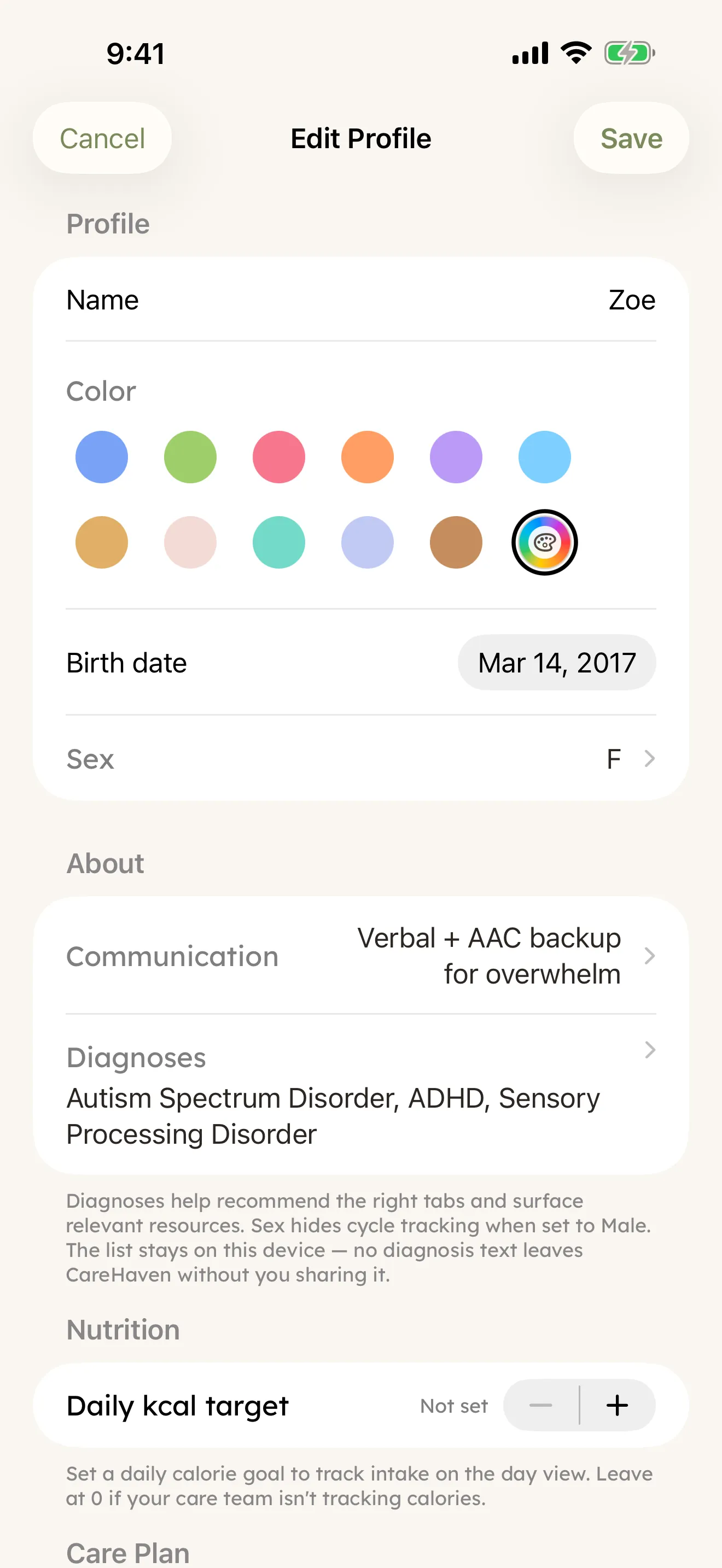
CareHaven has a lot inside it, but you only ever need to know a handful of spots to reach everything. This page is the map. Once these few pieces feel familiar, the rest of the app falls into place.
On this page
There are two small rows of controls that stay put: one across the top of the screen, one across the bottom. Everything you do starts from one of them.
The bottom row
Along the bottom of the screen sits a row of floating buttons.
- The + button (bottom right) opens quick logging — the fastest way to write something down. More on it below.
- The Main Menu button (bottom left) opens the list of every part of the app. More on it below too.
- A Back chevron at the far left and a Forward chevron at the far right step you through the screens you've already visited, the same way a browser's back and forward arrows do. Available
The bottom row stays where it is while you scroll, so Main Menu, +, Back, and Forward are always in reach. Two smaller things do change as you scroll down a long list, and both come back the moment you scroll up. The shortcut pill in the middle of the row shrinks to just its icon (more on it below). And on Home, the strip of days at the top tucks away. Other screens have no strip of days to tuck away.
This row isn't fixed — you can tune what it reaches. Both pieces that open from it are yours to shape: the + grid holds whichever quick logs you choose, and the Main Menu shows whichever hubs fit the person you're caring for. A good starting point is to keep your most-used daily logs — things like the day's timeline, behavior, and feeding or sleep — close at hand in the + grid, and leave the less-frequent features (vitals, communication, emergency plans) tucked in the menu where they're still one tap away but not in the way. Home, SOS, and Settings always stay reachable no matter how you arrange things. The full how-to is under Making it your own. Both lists are customizable in Settings → Menus & Quick Log (a Main Menu list and a Quick Log (+) list, kept per profile), so this navigation row can match how you care.
Want to hand the screen to the person you care for? Open Person's Day — on iPhone it's in the top-left Menu under Today (or tap their name at the top of that menu).
The + button (quick logging)
The + button is the fastest way to capture a moment. Tap + and a small grid opens with the things you log most — Feeding, Sleep, Behavior, Check-In, Note, Diary, Vitals, Seizure, Meds, and more. Tap one, fill in a short plain form, and Save; the entry drops straight onto the day. Available
So the tap-path to log a feeding is: + → Feeding → fill the form → Save. A seizure is + → Seizure → Save. It's meant for the in-the-moment moments: you log the thing, then get right back to your day.
If you'd rather just talk, tap + → Just say it (the wide row at the bottom of the grid, marked "Speak one sentence") and speak one sentence; CareHaven turns it into a draft entry for you to check and save.
Which entries appear in the grid fits the person you're caring for, and you can change it — see Making it your own below.
The shortcut pill in the middle of the bottom row. A small pill with an icon and a name, for example Feeding, sits in the middle of the bottom row, between the Main Menu pill and the +. While you scroll down, the pill shrinks to just its icon; when you scroll back up, its name returns. It is a one-tap shortcut to the log you use most: tap it and that log's form opens straight away, one tap instead of two. At first it holds the first log in your grid; after that it follows what you log most. The + still opens the full grid. To pick a different shortcut, touch and hold the pill and choose Most Used (the default, which follows what you log most) or one of the logs from your grid. That choice is saved for the person you are viewing. The pill tucks away while the + grid is open. Available
To switch the pill off, go to Settings → Menus & Quick Log, find the Menus section, and turn off One-tap shortcut pill. It is on by default and applies to every profile.
The Main Menu (every part of the app)
Tap the Main Menu button (bottom left) to open the full map of the app — a tidy list of every hub, grouped into sections so related things sit together. This is how you get from one area to another. Available
The hubs are grouped like this:
- Today — Home and Schedule.
- Track — your charts and patterns over time.
- Care — Care Plan, Medical, Body Care, Mental Health, Memory Care, Feeding, and Caregiver.
- People — Team and Insurance.
- Safety — your Safety hub (Care Card, crisis plans, and more).
So to open a behavior plan, the path is Main Menu → Care Plan → Behavior Plans. To check blood pressure, it's Main Menu → Medical → Vitals. Pick the hub, and its own screen opens with everything inside it.
You won't see every hub on every profile. CareHaven shows the hubs that fit the person you're caring for, based on their age and any conditions you've added. If a hub you want isn't listed, you can turn it on — see Making it your own.
The hubs
Each hub is a home for one part of caregiving, so you're never staring at one long list. There's a place for today's logging, a place for your schedule, a place for medical records, a place for your care plan and goals, a place for safety and crisis plans, and a place for tools that are just for you. You reach all of them the same way — Main Menu → the hub you want.
A few hubs are worth knowing by name:
- To-dos lives inside your Care Plan hub — the one-off follow-ups still waiting on you. Inside it, tap the screen title to open a pull-down that switches between your people, General, Everyone, and your shared lists, all in one place. See Care to-dos for the full tour.
- Safety is where your Care Card and crisis plans live. See Safety & crisis plans.
SOS and Settings (the top-left Menu)
Tap the Menu button in the top-left corner — the one with three lines — to open a panel of app-wide things. SOS — Emergency sits right at the top: one tap keeps your emergency contacts and your region's crisis lines close at hand. See Safety & crisis plans. Available
Below SOS, the same panel holds About, Data & Export, Resources, and Settings. Settings is where you adjust the app, and its About & Help category (Menu → Settings → About & Help) is home base for everything CareHaven can teach you, gathered under its Help section: Walkthrough replays the first-time tour, Feature Guide and Reference are searchable, built-in versions of the full handbook, Wiki opens that same handbook as a browsable offline site you can page through freely — no connection needed — Tutorials and Tips & Tricks offer shorter bites, and Send Feedback is where a note to us starts.
The Feature Guide opens with its sections folded up. Tap a section to see its topics, and tap a topic to read it in place. Or type a few everyday words into the Search features box at the top, and the sections that match open on their own.
Search and Ask
Tap the Search and ask button in the top-right corner (the magnifying glass) to open one place that does three things: it finds your own entries, it understands plain-language requests, and it answers questions. You don't have to pick a mode up front — just start typing in the box that reads "Search or ask…".
This is also where you ask CareHaven a question in everyday words. The full details, including how your privacy is protected, live on the Search & Ask CareHaven page. Available
The person switcher
If you care for more than one person, tap the colored pill in the top-center of the screen. It shows an initial and a name. Tap it to open the switcher, then tap any name to switch. Available
The whole app changes with you. Every log, record, and setting you then see belongs to the person you picked, kept completely separate from the others. See Setting up for the first time for adding more people.
Person's Day (hand the screen over)
Person's Day turns the day into a few large, calm cards — the schedule, what's next, and today's cues — with nothing to tap that logs or edits anything. It's built to hand the screen to the person you care for, or to watch together, without either of you worrying about bumping a setting. Available
On iPhone, open it from the top-left Menu → Today → Person's Day (or tap their name at the top of that menu).
When you're ready to hand control back, swipe down from the top of the card to leave.
The Home screen
Your Home screen is where you land. The top of it shows a few at-a-glance cards for the things that actually need you today, so you don't have to go looking for them. CareHaven shows at most two of these at once, most important first, and never buries your day under a stack of banners. The full tour of Home lives on The Home screen. Available
To return to Home from anywhere, tap Main Menu → Home.
Making it your own
You're not stuck with the defaults, and what you change is saved per person — so a household with a young child and an elderly parent can tune each profile separately.
To customize a menu, the path is Menu → Settings → Menus & Quick Log, then the Menus section:
- At the top, the "Editing for" picker chooses which profile you're tuning.
- Tap Main Menu to show, hide, or reorder the hubs that appear in the Main Menu list. This is how you bring back a hub that isn't showing, or tuck away one you never use. Available
- Tap Quick Log (+) to choose which entries appear in the + grid, and drag to reorder them.
- Tap Hub sub-sections to control what appears inside a hub.
- Switch One-tap shortcut pill on or off. It controls the shortcut pill in the middle of the bottom row, for every profile.
Home, SOS, and Settings always stay reachable, so you can't hide your way into a corner.
It's worth setting this up early. A menu tuned to your routine means the few things you do all day are always one tap away. The full walkthrough is on Make it yours. Available
The first-time tour
The first time you open CareHaven, a short, calm walkthrough points out these pieces as they come up: the + button, the Main Menu, and Search show themselves the first time they matter, so you learn the app by using it rather than reading about it. You can replay the whole walkthrough anytime later from Menu → Settings → About & Help → Walkthrough. Available
If you ever want to wander before you commit, you can explore with demo data first.
Once you know the + button, the Main Menu, the top-left Menu (with SOS), Search, and the person switcher, you can get anywhere. From here, dive into Daily tracking, Medical, or Caregiver tools.