Appointments & calendar
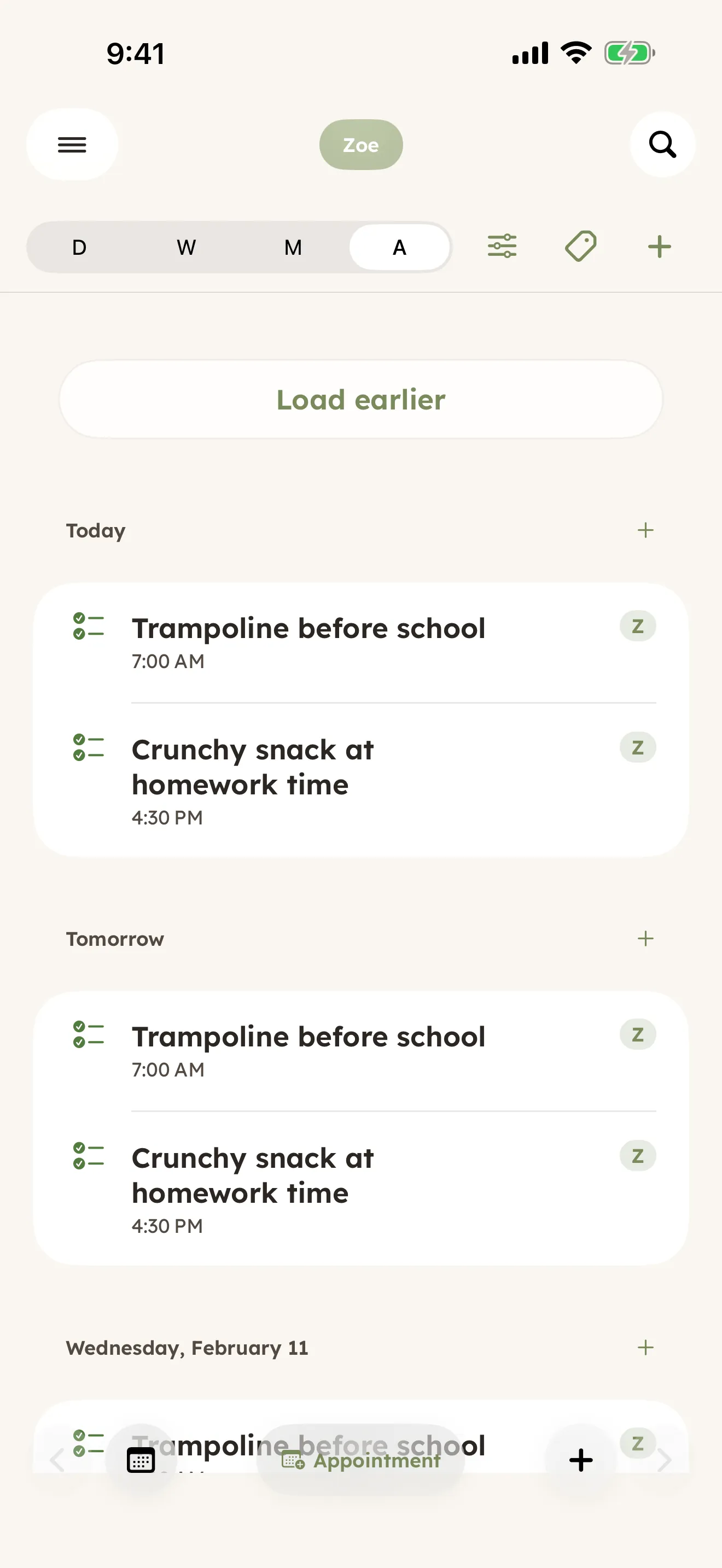
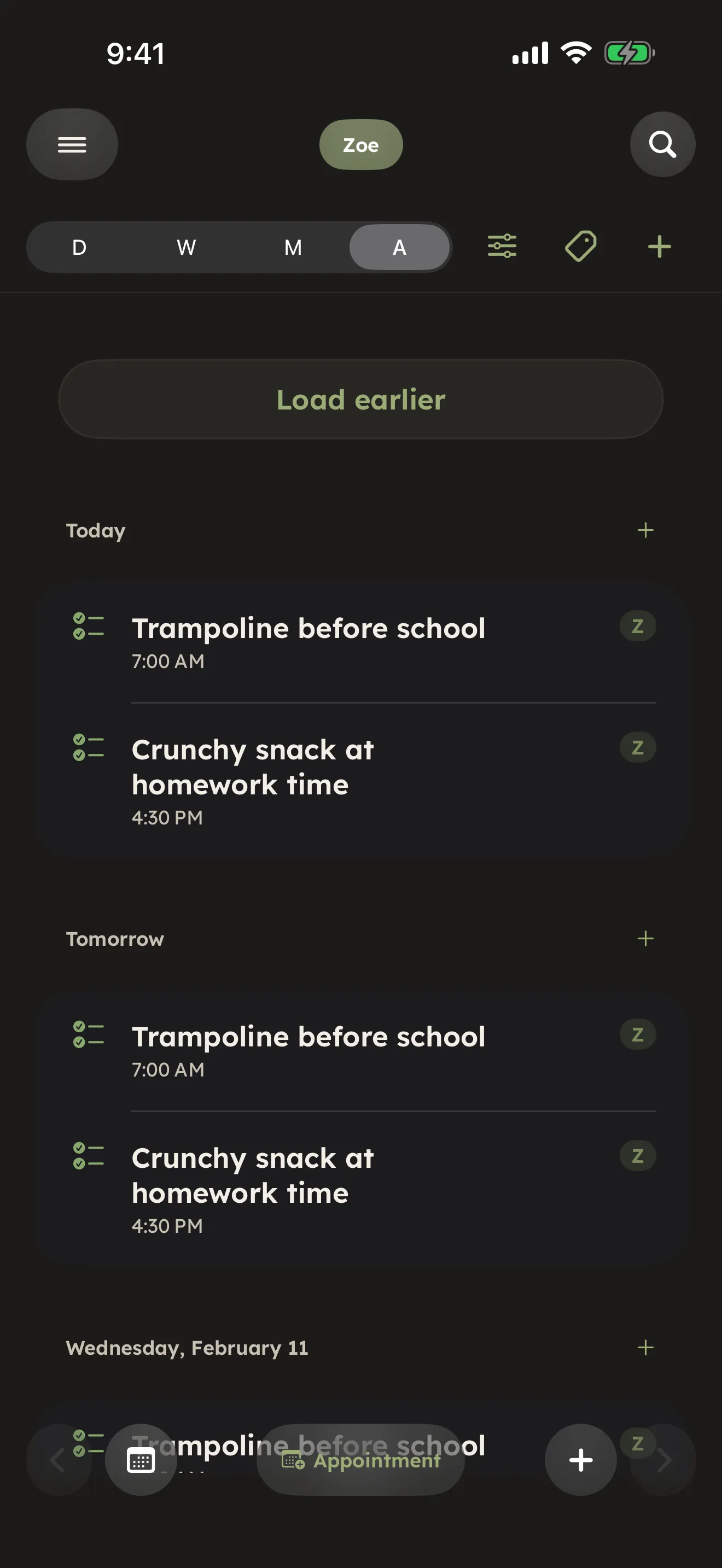
Therapy on Tuesdays, the neurology follow-up next month, the IEP meeting, the dentist. CareHaven keeps all of it in one place, attached to the person it belongs to, so you are not holding the whole calendar in your head.
On this page
CareHaven is the home of the schedule. The schedule lives here, with the rest of that person's care. If you want, your appointments can also flow out to a calendar you already use so iOS reminders and family-shared calendars stay in sync. That part is optional and off until you turn it on.
The schedule
Each person has their own schedule: therapy sessions, medical appointments, school meetings, evaluations, and anything else on the care calendar. To get there: Main Menu -> Schedule. The Schedule area is a full calendar with Day, Week, Month, and Agenda views, and it reopens in the view you used last. Available
Appointments, scheduled medication doses, routines, planned coverage shifts, and fasting windows all show up here in one place. Each person's events carry their profile color, and the chips above the calendar narrow the view to one child or show everyone at once — that's the same Care Day setting that shapes Home, so the two screens always agree on who you're looking at.
Every appointment can carry:
- A title and a provider name
- A date and time
- A location (add the office's full address, not just the building name, so directions come along)
- A recurring pattern, if it repeats
- Notes for what to ask about or what to remember
- A bring-along list for the things you do not want to forget
The calendar can also show medication dose times, routines, coverage shifts, fasting windows, and recent care history alongside appointments, so the week reads like a real care day rather than a plain list of visits.
Adding an appointment
- Main Menu -> Schedule, then tap + (top right of the calendar toolbar) and choose New appointment. You can also start one from the Appointments list in that same + menu.
- Enter the title, provider, date, time, and a recurring pattern if it repeats.
- Add notes (what to bring, what to ask about) and fill in the bring-along list.
- Save.
An appointment can be as simple as a title and a date, or it can carry a time, an end time, a repeat pattern, a reminder, an assigned caregiver, and a bring-along list.
Setting the time:
- Switch on Has a specific time to set a start, an End time, and how long it lasts.
- Overnight? Set the end time earlier than the start and it rolls to the next morning — the form says so in plain words, like "Ends tomorrow at 6:00 AM."
- Multi-day stays — leave "Has a specific time" off and set a Last day instead. An all-day appointment can cover up to 7 days: hospital stays, respite weekends, a week at grandma's.
- If two timed appointments overlap, a gentle "Heads up — overlaps with…" note appears before you save.
Reminders: Pick a reminder as part of the appointment — the night before at 8 PM, 4 hours, 1 hour, or 30 minutes before, or none. It is scheduled when you save, as a notification on this device.
Who it is for: Every appointment belongs to one person (the For field), and can be assigned to the caregiver responsible for getting them there. The calendar's person filter uses the same assignment, so "what's mine this week?" is one tap.
On the appointment itself, you also get:
- Bring along — picture cards, comfort item, paperwork, right there so nothing is forgotten in the doorway.
- Visit Prep — your open questions for the next visit, in your hand when the doctor asks "anything else?"
- Share calendar file — send this one appointment to anyone as a standard calendar file that opens in Apple Calendar, Google Calendar, or Outlook.
- Add to Apple Calendar — when Apple Calendar sync is on, put this appointment (recurrence included) in your phone's Calendar app. Apple's screen shows which calendar it goes in before it is saved.
Recurring appointments
If something repeats — weekly therapy, a monthly medication review — set its recurrence once and CareHaven carries it forward for you, so you are not re-entering the same visit every week. Available
The bring-along list
Every appointment has a bring-along field. Use it for the things that are easy to forget on visit day — the seizure log, the emergency card, formula samples, a question you meant to raise. It shows up on the appointment and rides along in the handoff packet so whoever takes them to the visit is not guessing.
Where appointments show up
Your schedule does not stay shut away in one screen. Appointments surface where you need them:
- On the Home screen, an appointment appears on the day it falls, projected from its recurring pattern.
- The next visit shows on the Apple Watch glance and in the handoff packet's upcoming section, so a sitter knows what is coming.
- Past appointments archive on their own. Search the list for "neurology" or "OT" to find the last visit. Available
You can also ask CareHaven what is next. A Siri request reads the schedule aloud, hands-free, including in CarPlay. Available
Get ready for a visit that's coming up
When a visit is close — the day before or the day of — a "Get ready for this visit" section appears on it. It offers your saved questions for that visit plus a one-tap, 30-day summary you can read aloud, pulled together from the recent logged data so you walk in with the picture instead of trying to reconstruct it from memory. This shows up only while the visit is near, not on every appointment at any time. Available
Calendar views and tools
Use the mode buttons at the top of Schedule to switch between Day, Week, Month, and Agenda. Day is best for "what is happening today"; Week is best for therapy and dose rhythm; Month is best for planning ahead; Agenda is best when you want a compact list. Available
Tap Today any time you want to jump back to the current date. If the calendar view feels too broad, switch to Agenda for a tighter list of what is coming next.
Two filters help you focus the view:
- The sliders icon opens Calendar options. Show history overlays what already happened — logged feedings, medication doses, seizures, aspiration, and reflux. Show coverage shows or hides the coverage bands, both planned and actual shifts, and the small coverage markers on Agenda and Month days.
- The person icon narrows appointments by who they are assigned to — Anyone, Me, Unassigned, or a specific caregiver. This is different from the Care Day chips above the calendar: Care Day controls whose appointments show up at all, while this filter narrows who's responsible for getting them there.
Anything that is filtering the view shows as a small chip under the header. Tap the chip to clear it, so there are never hidden filters.
You can also work directly on the calendar by touching and holding an item. A scheduled medication dose offers Mark given, and an open coverage slot offers Claim this shift — small jobs done without leaving the view.
The older appointment list is still reachable from the + menu in the calendar toolbar (next to the tag icon) — choose Appointments list. Use it when you want a simple searchable list of appointments rather than the calendar layout. The same + menu also holds Coverage, Import events, Export calendar file, Visit Prep, and your To-do list, alongside New appointment.
You can share a single appointment as a calendar file through the iOS share sheet. You can also import events from a calendar file or from Apple Calendar, but CareHaven waits for you to review the list before it saves anything. Nothing is imported silently. Available
To share one appointment:
- Main Menu -> Schedule, then tap the appointment to open it.
- Choose Share calendar file.
- Send it through the iOS share sheet by Messages, Mail, AirDrop, Files, or another app.
To import appointments:
- Main Menu -> Schedule, then tap the + in the calendar toolbar (next to the tag icon).
- Choose Import events.
- Pick a
.icscalendar file or an Apple Calendar source. - Review the events CareHaven found.
- Confirm only the ones you want to save.
Mirror your schedule to a calendar (Apple Calendar sync)
If you would rather see everything in one place, CareHaven can sync with the calendars you already use — your iCloud, Google, and Microsoft Outlook or Exchange calendars, any account you have added to your iPhone. This is off until you turn it on. Available
When you turn syncing on, each child you choose gets their own CareHaven calendar in your phone's Calendar app, and CareHaven writes that person's appointments out to it — recurring patterns included. Your existing calendars are never changed.
How it works today:
- CareHaven stays the home of your care schedule. Apple Calendar sync is optional and off until you turn it on.
- When sync is on, you choose whose appointments to send out. Each of those children gets their own CareHaven calendar in your phone's Calendar app, and CareHaven writes their appointments to it.
- Optionally, you can also show some of your other calendars inside CareHaven, and say which child each one belongs to. They can come from iCloud, Google, Outlook, or Exchange accounts already on your iPhone. Events from those calendars come in only after you review them and confirm.
- Appointment review and edit flows preview what will happen before anything is saved.
- Calendar settings show a plain-language sync status. Tap it to see what is linked, what is waiting, and anything that needs your attention.
You control what each calendar reveals, per child:
- Calendar name — sets the name only when CareHaven first makes that calendar. Changing it later does not rename a calendar that already exists. To rename one that is already there, rename it in Apple's Calendar app, if your account allows it.
- What shows on the calendar — pick how much detail each appointment carries: Just the name (the appointment's name, plus a short note that says "Managed by CareHaven"), Full details (provider, bring-along, and notes — the most useful, least private), or Private label (a generic "CareHaven" label, for a calendar other people can see).
- Sync now pushes everything out right away, any time you want, instead of waiting for the next automatic sync.
Review shared calendars carefully. If a calendar is visible to other people or on shared devices, anything you put on that calendar can be seen there too. CareHaven makes the sync choice explicit, but your outside calendar still controls who can see its events.
Turning sync on
- Tap the menu icon (top left) → Settings → Sync & Backup, and scroll to Apple Calendar. Switch on Sync with Apple Calendar. The app asks once for Calendar permission. If you said no before, the screen says "CareHaven doesn't have Calendar access. Open Settings to allow it." and shows an Open Settings button.
- Choose whose appointments to send out. - With more than one profile, tap each child under Choose whose appointments to sync. A filled check mark means that child is syncing. - With one profile, that child is chosen for you, but nothing is created yet. A card reading Paused — nothing has been added yet shows what CareHaven will create. Look over the privacy options, then tap Start syncing and the child's name (for example, "Start syncing Zoe's calendar").
- Tap a syncing child's name to open their options. Calendar name sets the name only when CareHaven first makes that calendar. Changing it later does not rename a calendar that already exists. What shows on the calendar is Just the name, Full details, or Private label (described above).
- Optional: open Also show your other calendars in CareHaven. Calendars are listed by account (iCloud, Google, Outlook, Exchange). For each one, pick the child it belongs to, or leave it on Don't show. A read-only calendar still shows up; the app says "Read-only — shows in CareHaven, can't be edited here". Tap Review events to add to see what is new. Nothing is added until you confirm it.
- Tap Sync now any time to push and pull right away. Otherwise it syncs when you open the app and after you save an appointment.
Appointments you create in CareHaven are written to the child's own CareHaven calendar. With sync on, an appointment that is not on your phone's Calendar yet shows Add to Apple Calendar when you open it. Once it is there, the same spot shows Remove from Apple Calendar, which takes it off again.
Check how sync is doing. Once sync is on, a status row at the top of the Apple Calendar section gives a one-line summary, for example "3 linked · 1 to send". Tap it to open Calendar Sync. It shows when the last update happened, how many events are linked, how many CareHaven edits are waiting to send, how many events were deleted in Apple Calendar, and how many mapped calendars are waiting for your review. From there you can tap Sync now, or Review Apple Calendar changes when you have mapped calendars. If something went wrong, Recent sync issues lists it in plain words; Clear issue history wipes that list (it only ever lives on this device). When an appointment is about to change because of Apple Calendar sync, the app shows the edit or review screen before it saves.
Bring back an event that was deleted in Apple Calendar. CareHaven keeps its own copy of the appointment. In Calendar Sync, look under Restore deleted events, open the appointment, and tap Restore to Apple Calendar. That creates a fresh linked event.
Don't see your Google or Outlook calendar?
Those calendars appear once you have added the account to your iPhone. Open the iPhone's own Settings app, go to Apps, then Calendar, then Accounts, and add the account there. The next time you open CareHaven's calendar settings, those calendars show up in their own group, ready to turn on. CareHaven never holds your Google or Outlook password — your iPhone owns those connections.
How both directions work
- Events from the calendars you picked come into CareHaven as appointments for the person you are currently viewing, ready to view and edit without leaving the app.
- Appointments you create in CareHaven are written to the child's own CareHaven calendar with their recurring pattern, and your edits in CareHaven flow out to the linked calendar event.
- If the same appointment changes in both places, CareHaven does not overwrite silently — your next import lists the changes under Review events to add so you decide what to bring in.
Bringing events in
Want school or activity calendars inside CareHaven too? Under Also show your other calendars in CareHaven, pick a calendar and the child it belongs to. Events from those calendars are never added on their own — they arrive through Review events to add, where you check each event and confirm it. Nothing is added until you say so, and anything already added stays put. See Importing events for the full review flow.
What happens when things change
CareHaven is careful never to lose your care data because of an outside change:
- If you delete an event from a calendar, CareHaven keeps its copy and just unlinks it.
- If you stop showing a calendar, the appointments already brought in stay put; CareHaven simply stops pulling new updates from it.
Turning sync off
Switch Sync with Apple Calendar off and CareHaven asks "Turn off Apple Calendar sync?" with four choices: Remove CareHaven's events, Keep events, just unlink, Leave everything, or Cancel (which leaves sync on). The first three decide what happens to the events CareHaven created on your phone's Calendar. Calendars you pulled into CareHaven are always left alone.
Coverage planning — who's on duty
Who's on duty tomorrow? Coverage planning answers that before it becomes a 6 AM scramble. Plan caregiver shifts over the next two weeks, leave open slots for whoever can take them, and let the calendar point out the gaps before they happen. Plans you keep flow out to your co-caregivers, so everyone is looking at the same schedule — see Walkthrough: Share the calendar with your care team for how that works today.
Planning a shift
- On the Schedule tab, tap the + in the calendar toolbar (next to the tag icon) and choose Coverage.
- Tap Plan a shift.
- Pick who it's for, when it starts and ends, and who's covering — or leave it as an open slot.
- Add a note if it helps — "overnight — meds at 8" or "pick up from school."
Open slots and claiming
An open slot is a shift no one has taken yet. Claiming is one tap — touch and hold the shift on the calendar and choose Claim this shift. Need to swap? Take over this shift does the same for a shift that's already someone else's.
One thing to know while sharing is one-way today: a claim counts when it's made on the phone that keeps the record. If a co-caregiver spots an open slot on their own phone, a quick "I'll take Tuesday" text and one tap on your side puts it on everyone's calendar. Coming soon — claiming from any phone in the circle.
Gaps and who's on shift now
When a stretch of the day has no one planned, the calendar says so — "No one planned 2:00 PM – 6:00 PM" — so the hole is visible days ahead instead of the morning of. You can show or hide the coverage bands any time in Calendar options.
When a shift is actually underway, an On shift row at the top of the calendar shows who's with your person right now.
Tip: Plan the week on Sunday and leave the uncertain days as open slots. A concrete "Tuesday 2–6 is open" gets claimed; a vague "can anyone help this week?" doesn't.
Importing events (ICS file or Apple Calendars)
Bring outside events into CareHaven — from a calendar file someone sent you, or from the Apple Calendars you've chosen to show. You review every event before anything is added. Nothing lands on your calendar without your say-so.
How to import
- On the Schedule tab, tap the + in the calendar toolbar (next to the tag icon) and choose Import events.
- Pick a source: Choose a calendar file (.ics) — the standard calendar file schools, clinics, and other calendar apps send — or Check Apple Calendar for new events from the calendars you mapped to a child in Settings.
- Review the list: switch off anything you don't want, and make sure each event has the right person.
- Tap Add events.
Built-in guardrails
- Nothing is added until you confirm — just reading a file changes nothing.
- Events that look like ones you already have are flagged Possible duplicate.
- Events without a person chosen are left out.
- Anything already added stays put.
Tip: Therapy clinic emailed the semester schedule? Save the attachment to Files, then import it here — a whole season of sessions lands in one review.
Fasting & NPO windows on the calendar
Before a surgery, an EEG, or a swallow study, the care team may say the person is NPO — medical shorthand for "nothing by mouth." No food, no drink, starting at a set time. CareHaven treats that window as a real event, because a missed fasting start can cancel the procedure.
Tracking a fasting window
- Open the Feeding hub → Fasting windows.
- Add a window: when the fast starts, when it ends (if you know), and the reason — tap a chip or type your own.
On the calendar
Fasting windows show on the Schedule calendar alongside everything else, so whoever has the morning shift sees "nothing by mouth" before breakfast happens. Tap one on the calendar to open the fasting list.
Reminders
Fasting Reminders give a one-hour heads-up and a start-time alert for any scheduled window. They're on by default — you can turn them off under Settings → Menus & Quick Log → Features.
The feed warning
If someone starts logging a food or bottle feeding during a fast, the composer shows a clear warning — "No food or drink (NPO) — fasting in progress" — before anything is saved. Tube feedings don't trigger the warning, because prescribers often allow them to continue during NPO — the care team's orders decide. And if you schedule a fasting window over a time where feedings are already logged, it points that out too (tube feedings included there, so you can see the whole picture). It's a safety net for the 6 AM sippy-cup moment, not a lock: you stay in charge.
Not medical advice. The care team sets the fasting orders — CareHaven just makes sure nobody on the schedule misses them.
A note on privacy
With Apple Calendar sync on, CareHaven makes a calendar on your iPhone for each person you choose and writes that person's appointments into it. Adding a doctor-visit follow-up to your calendar does not need sync on. Tap the calendar button next to it. One with a date opens Apple's event screen before it is saved. One with no date goes straight into your iPhone's default Reminders list. Either way it keeps its real name, even with Private label, and the tap can also make that person's CareHaven calendar. The calendar's name usually starts with "CareHaven", and it can include the person's name, like "CareHaven – Zoe". Calendar name sets the name only when CareHaven first makes the calendar. Changing it later does not rename a calendar that already exists. The calendar is usually made in the account your phone uses for new events, such as iCloud, Google, or Outlook, and your iPhone syncs it there like any other calendar. Each event carries its date and time, and a short note that says "Managed by CareHaven". The rest depends on What shows on the calendar: Just the name (the usual choice) adds the appointment's name. Full details also adds the provider, what to bring, and notes. Private label uses the word "CareHaven" instead of the appointment's name. The calendar's own name still shows, and it may include the person's name, so think about who can see that calendar. To rename a calendar that already exists, rename it in Apple's Calendar app, if your account allows it. CareHaven finds its calendar by an ID, not by its name, so syncing keeps working. When sync is on, your iPhone owns the connection to Google or Outlook — CareHaven itself holds no Google or Outlook password and sends nothing to those servers directly. Sharing a calendar file or importing a calendar file happens only when you ask for it. For the full picture, see Privacy & security.
Related
- The Home screen — where today's appointments surface
- Care to-dos — the To-do list that lives in this same Schedule tab, with its own due dates and deadlines
- Caregiver tools — the handoff packet carries your next appointments
- Across your Apple devices — the Watch glance and Siri
- Sharing & reports — pulling appointment history into a report