Walkthrough: Create a handoff for a sitter

Hand off the day without a long phone call. When someone else steps in — a partner taking the next shift, a grandparent for the weekend, a paid sitter — you shouldn't have to recite everything from memory. A handoff packet gives the incoming person a calm snapshot of today and what to watch for, so you can hand over the phone-in-your-head instead of carrying it. Available
On this page
What this does for you:
- Less to explain. The packet pulls together what the sitter needs for the time window you pick.
- In their language. Translate the packet if needed.
- Easy to open. Share it as a link or a file.
This walkthrough builds one from start to finish.
What the sitter gets
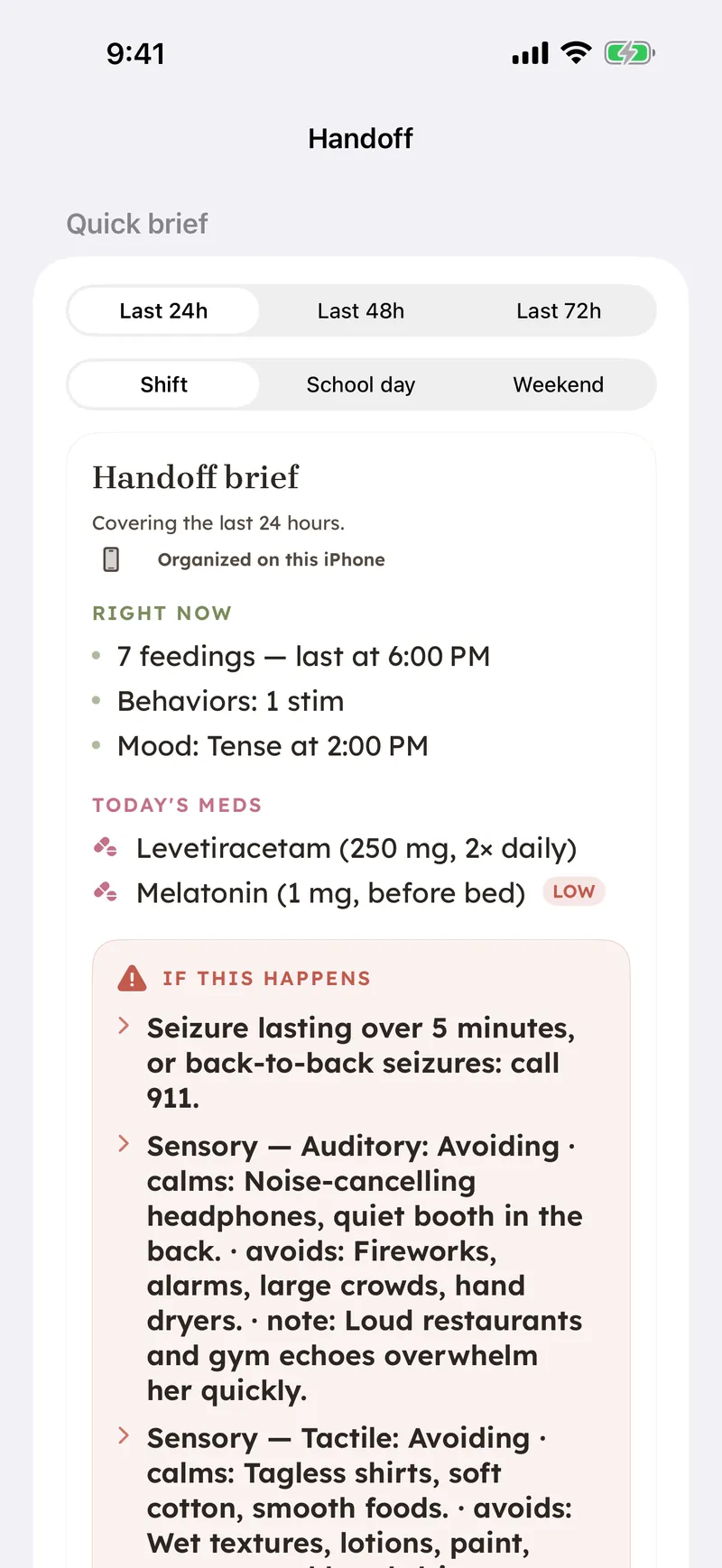
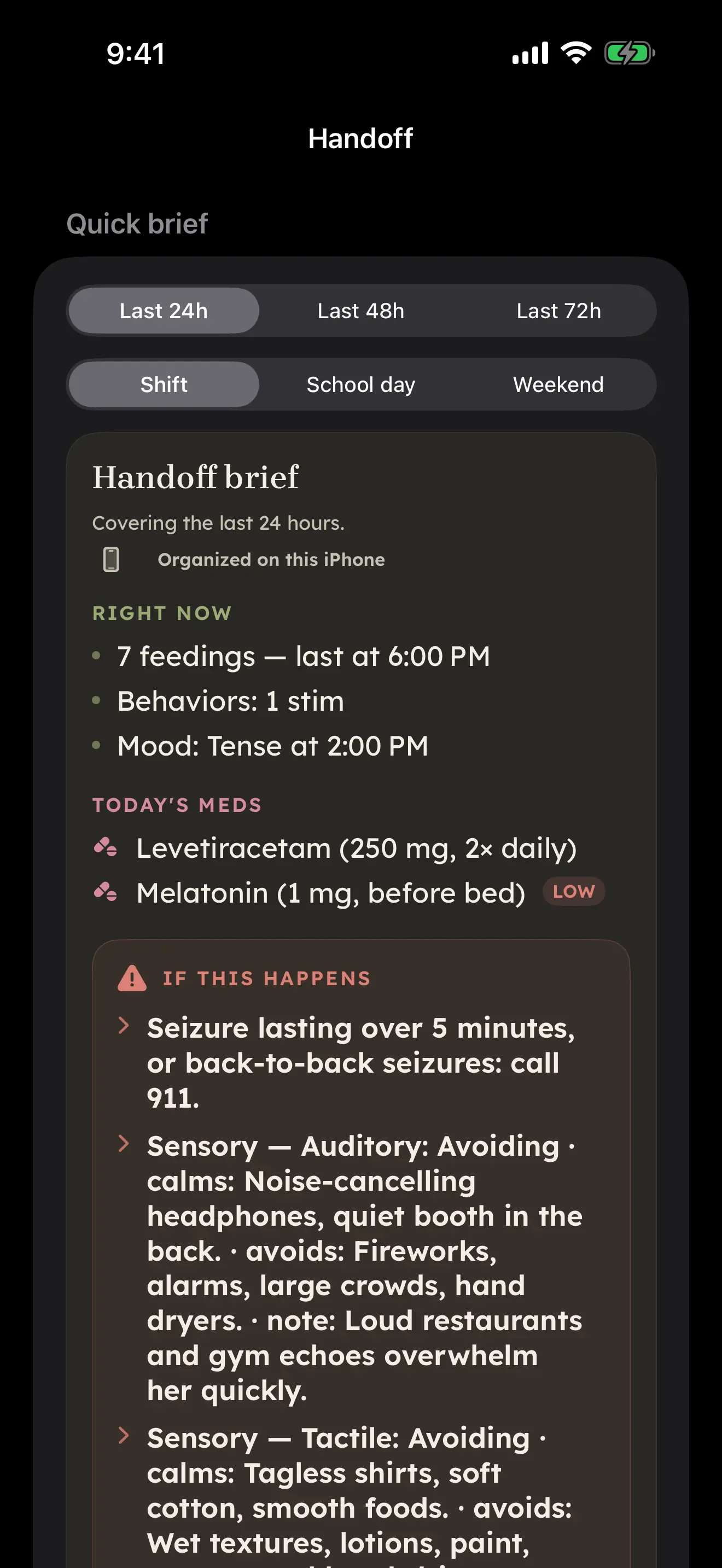
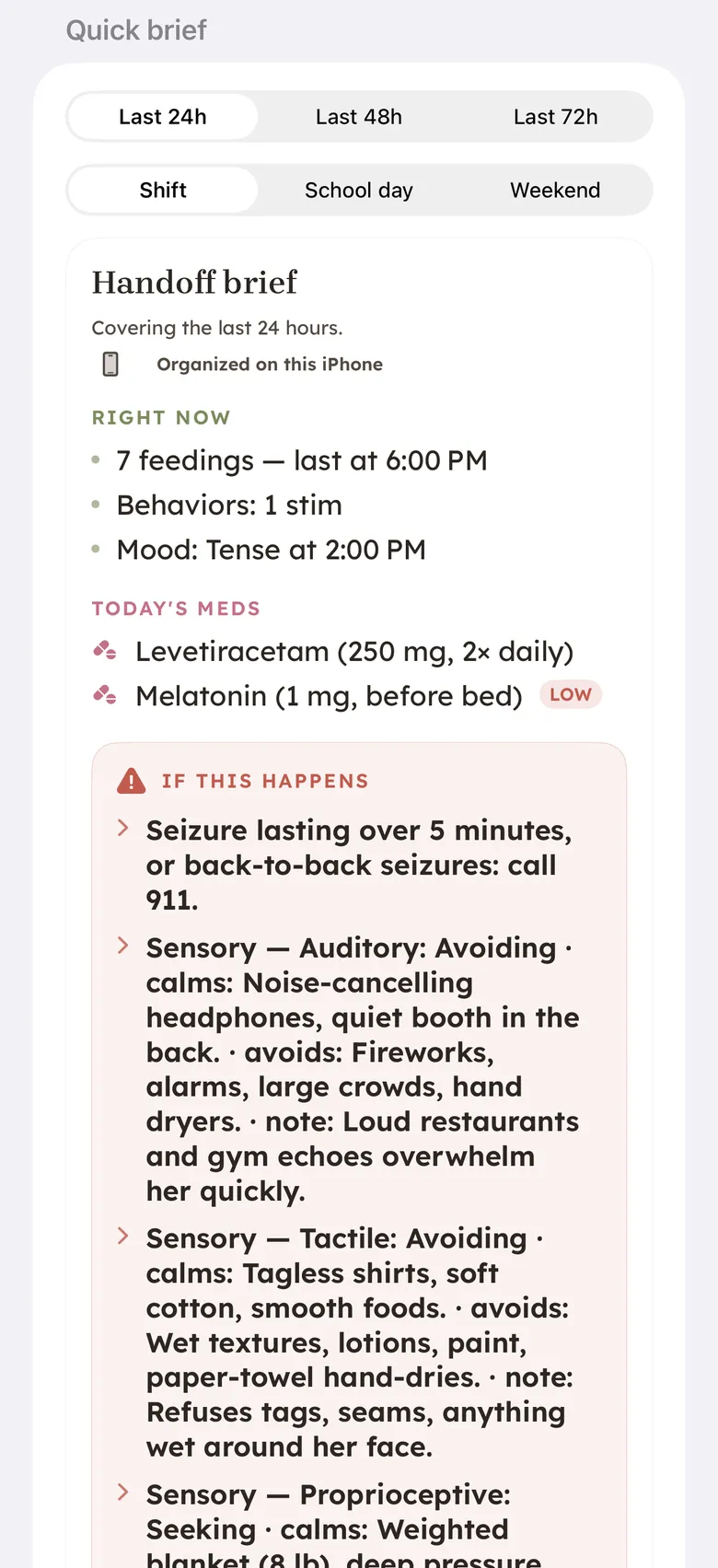
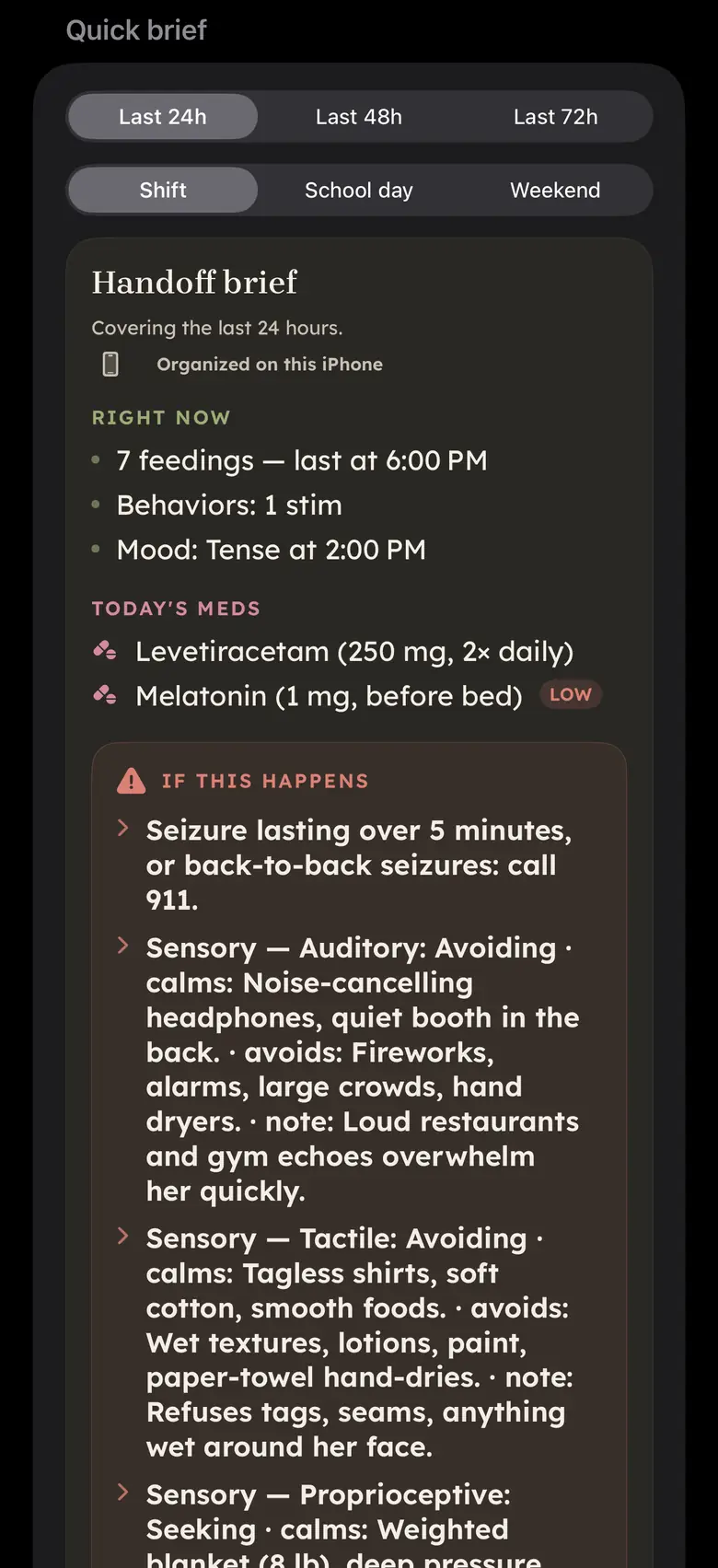
CareHaven fills in a Handoff brief from what you've already logged: a one-page note, organized into sections the next person can skim:
| Section | What it holds |
|---|---|
| RIGHT NOW | The recent rhythm of feedings, sleep, behavior, and mood, plus any seizures logged. |
| NOTES FOR THE SITTER | The notes you type for this handoff. It only shows once you've added some. |
| TODAY'S MEDS | What they take, with the dose. A LOW tag shows when a supply is running low. |
| IF THIS HAPPENS | The do-this-now essentials, like when to call 911 for a seizure, plus sensory needs from your sensory profile. |
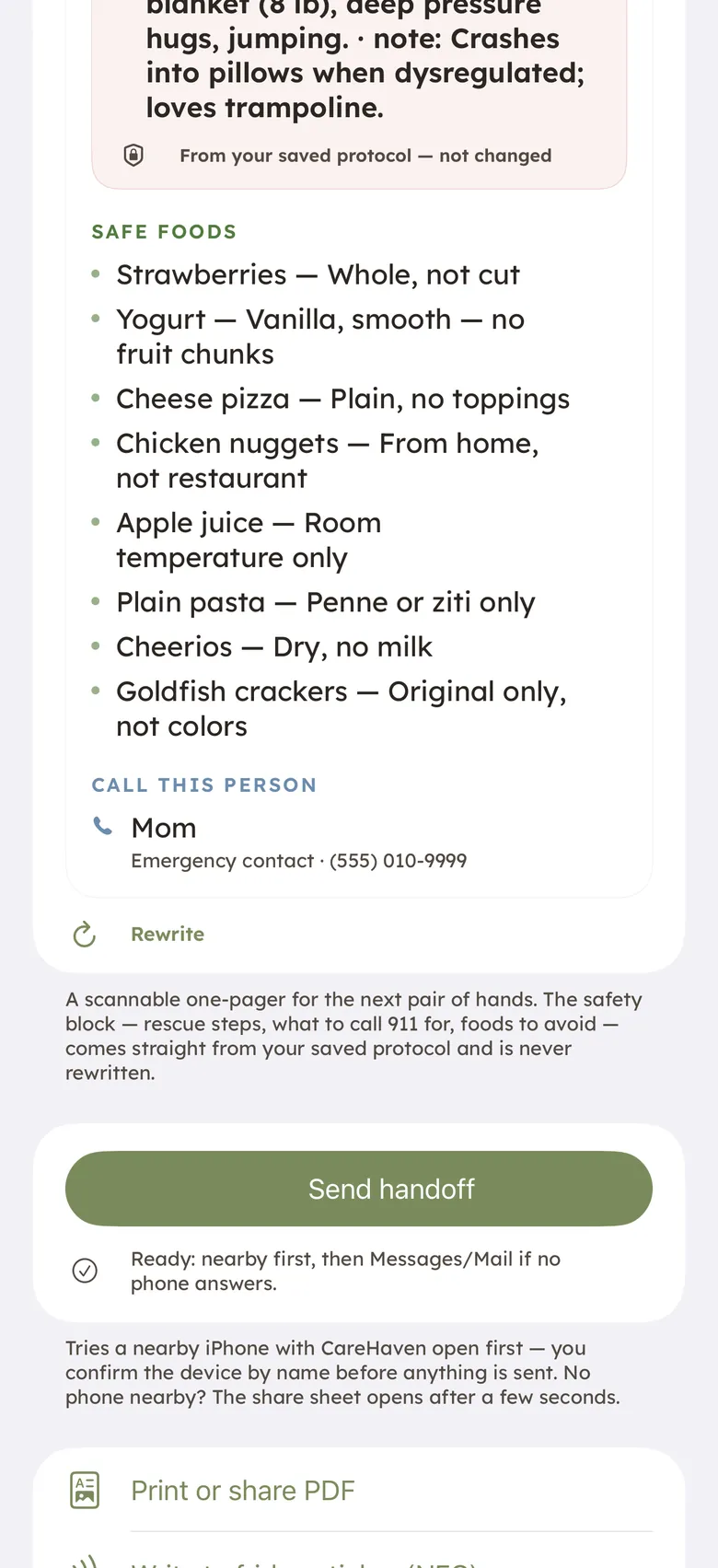
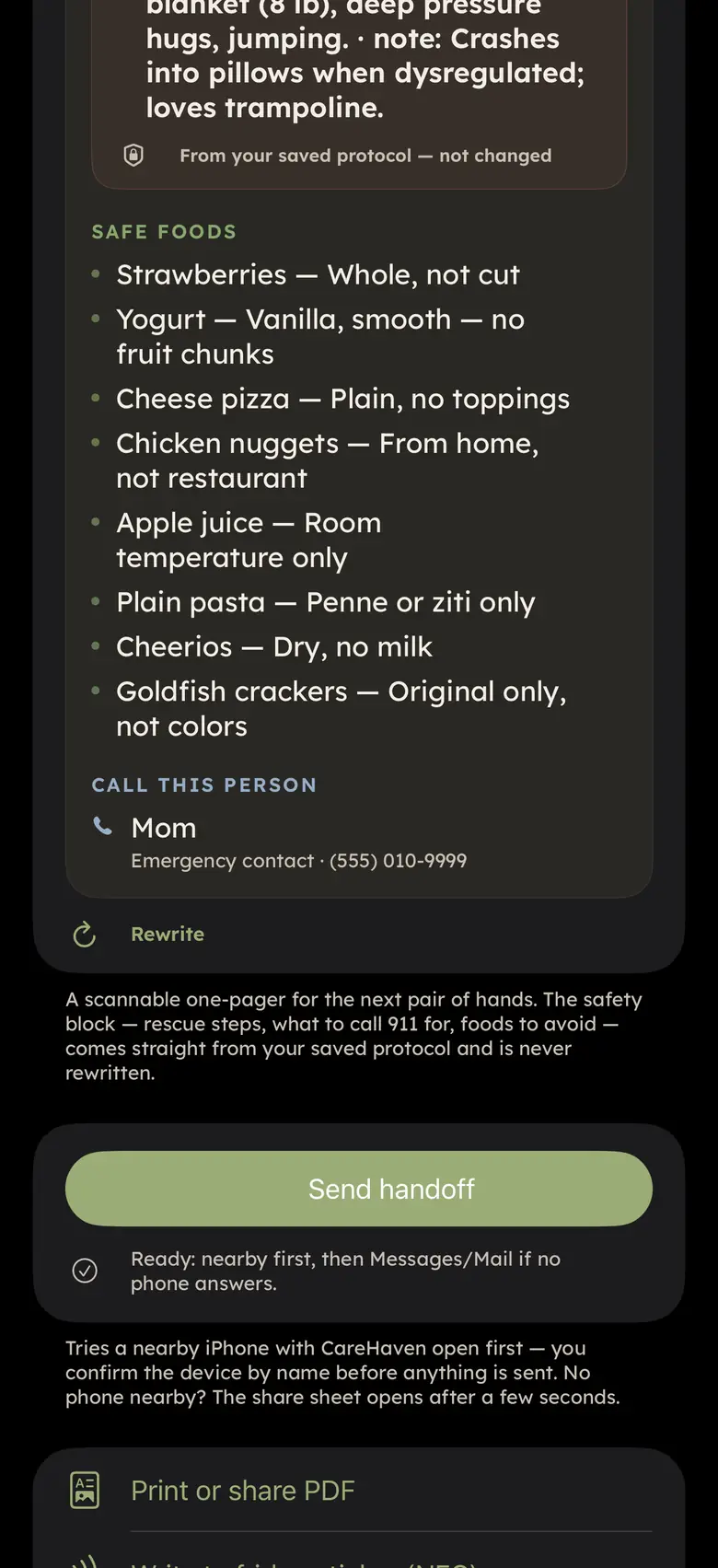
| SAFE FOODS | Foods that work, with your notes on how to serve them. An AVOID list follows when Diet & swallow safety calls for a softer food texture or thickened drinks. |
| CALL THIS PERSON | Who to call, with their phone number. |
The safety steps use your saved care information word for word. When there's any seizure history, CareHaven also adds one standard line: call 911 for a seizure that lasts over 5 minutes, or for back-to-back seizures. AI never rewrites this section.
If you've filled in a sensory profile or any skill routines, those ride along too, so a sitter knows what calms this person and how much help to give. Available
Step 1 — Open Handoff
Tap Main Menu → Team → Handoff. The Handoff row sits in the Coordination section of the Team hub.
You can also reach it from Main Menu → Caregiver → Take a break (the "Brief them with Handoff" shortcut inside that flow).
If you don't see the Handoff row: it can be hidden per person. Go to Settings → Menus & Quick Log, pick the profile under Editing for, tap Hub sub-sections, and switch Handoff back on.
Before you open Handoff, make sure the name pill at the top center of the screen is the person you're handing off. The packet is built for whoever is currently selected, and the Handoff screen itself only says "Handoff". Tap the name pill to switch if you need to.
Step 2 — Pick the time window
Choose how far back the snapshot should reach: the last 24, 48, or 72 hours. A single overnight usually wants 24; a full weekend handoff is often clearer at 48 or 72.
CareHaven fills the brief from what you've logged in that window. You don't write it by hand. The Handoff brief card on the screen is what the sitter reads, so give it a look before you share it. Tap Preview near the bottom of the screen to expand a longer, section-by-section view.
Step 3 — Add a friendly note (optional)
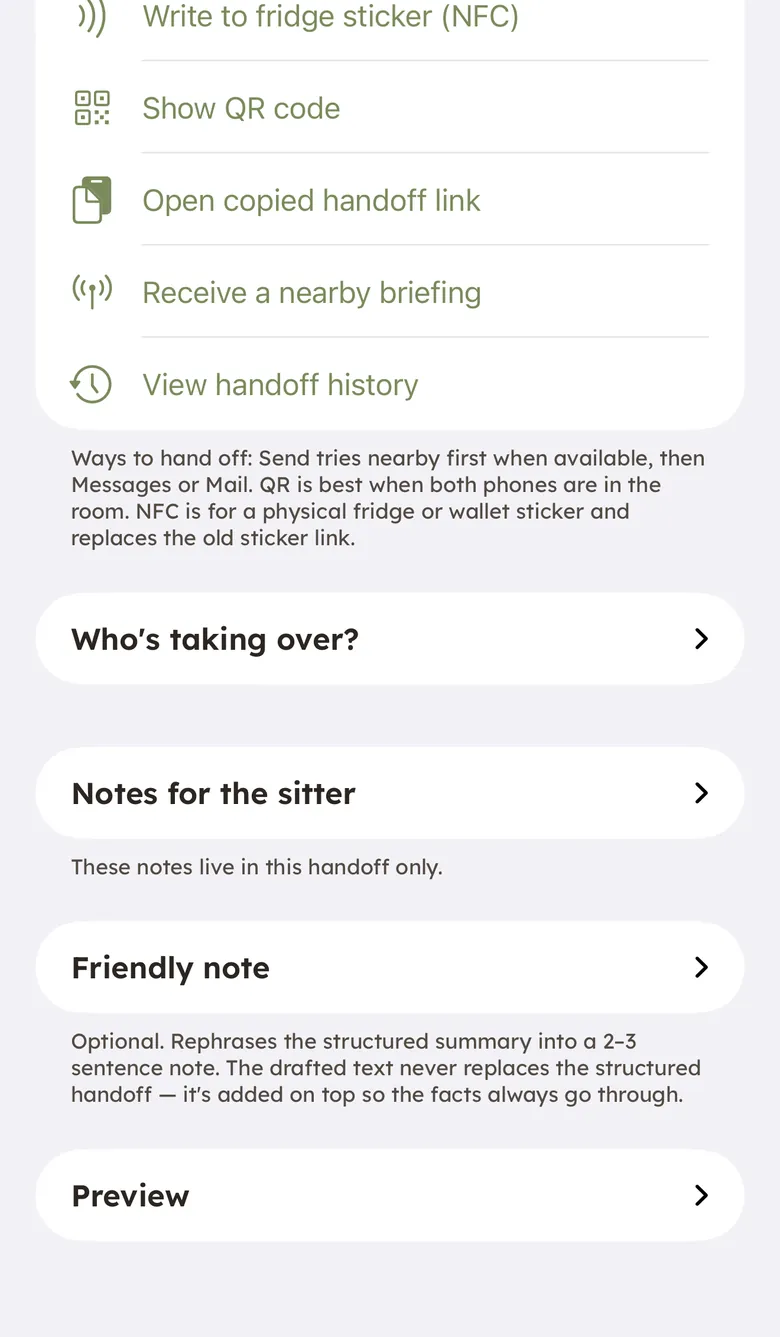
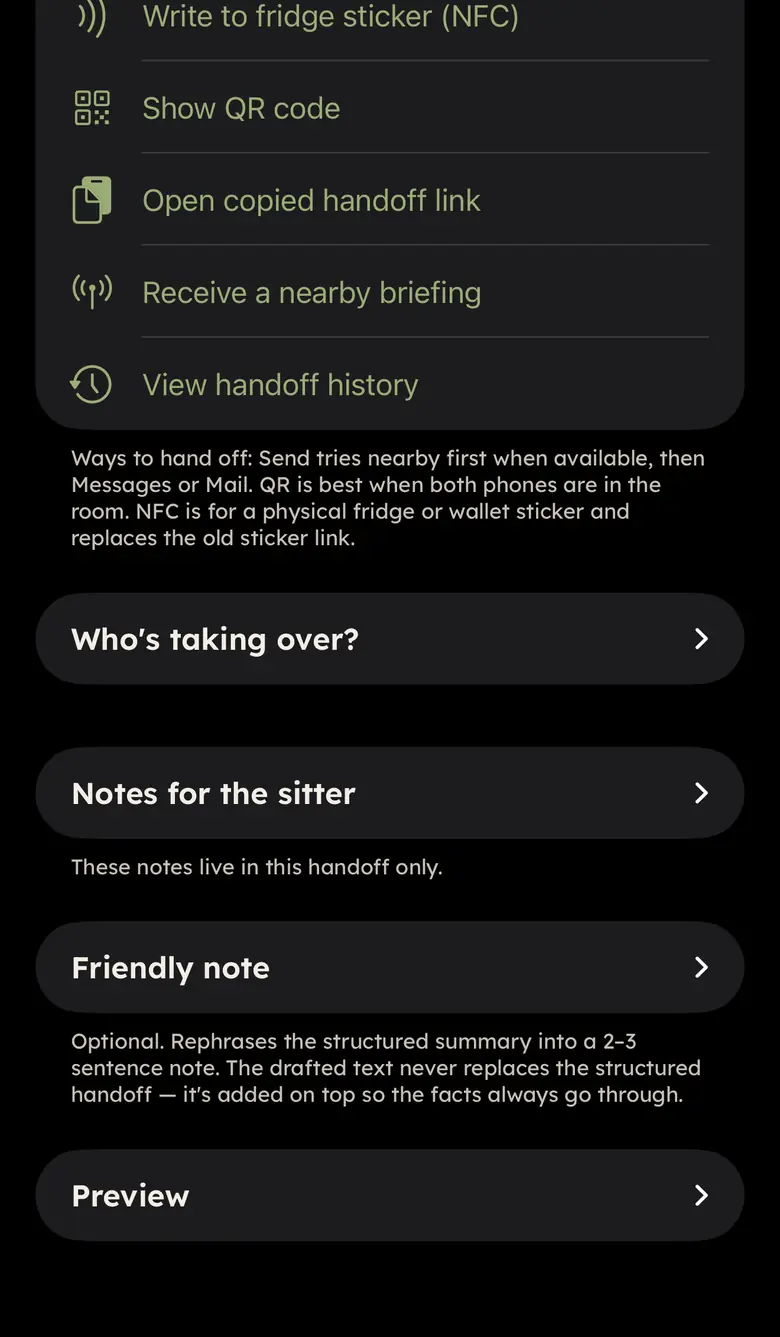
Tap to expand Friendly note, then tap Draft a friendly note — CareHaven writes a short, warm two-or-three-sentence note that reads like you took a breath and summed up the day, drafted privately from today's events. It only appears if you ask for it. Available
You can keep it, tap Try again for a different draft, or tap Remove to take it off. The structured sections stand on their own.
Step 4 — Pick the sitter and add notes for them
Tap Who's taking over? to expand it, then pick the sitter from your team. (If the list is empty, add the sitter to your team first.) Next, tap Notes for the sitter to expand it. Once you've picked someone, that row reads Tell and their name instead. Add the one or two things you most want the next person to know tonight. ("She's been off her nap, so bedtime may be rough." "Skip the green cup, it leaks.")
These arrive in the shared text as a short list under NOTES FOR THE SITTER. They live in this handoff only — the next shift starts fresh, so nothing piles up.
Step 5 — Translate it if needed (optional)
If the sitter reads another language more comfortably, you can translate the friendly note before you share it. Tap the translate option on the narrative and choose a language. Available
This uses your iPhone's built-in translation, so the words stay on your device.
Step 6 — Share it the way that works for the sitter
You have a few ways to get the packet to the sitter, and each one lands a copy in History automatically:
- Try a nearby iPhone first. Tap Send handoff — there's just the one button, and it's adaptive. Trying a nearby iPhone first is part of CareHaven Plus; without it, the same tap opens the share sheet directly (see the next bullet). With Plus, it tries a nearby iPhone with CareHaven open first: this only works if the sitter's phone already has the full CareHaven app installed, open, and set to Receive a nearby briefing (from their own Handoff screen) — there, they see your device in their nearby list and tap Tap to accept. Once they do, you confirm the device by name on your phone (Send to "[device name]"?) before anything sends, over a private local connection with no internet involved. Available
- Falls back to the share sheet automatically. If no nearby phone answers after a few seconds — or the sitter doesn't have CareHaven — the same Send handoff tap opens the regular share sheet instead, where you choose Messages (or another option) to send it as a plain message — by text, email, or however you normally reach them.
- Show a QR code or copy a link. Tap Show QR code when the sitter is standing with you and can scan it from their phone. To paste the link into a message yourself, tap Copy on that same screen (Share sits beside it). Closing the QR sheet does not delete the handoff. The link routes back to the handoff instead of a generic screen. Available
- Print or share a PDF. Use Print or share PDF when the next caregiver needs paper, a Files copy, or an email attachment. The PDF includes the handoff brief, who it is for, who should receive it, its issue time, and its expiration time. Available
- Fridge sticker (NFC). Tap Write to fridge sticker (NFC), then hold your iPhone over an NFC sticker you keep at home. Anyone who taps an iPhone to it can then see the same read-only briefing. Each write replaces the last one. It's meant for a recurring sitter, a respite worker, or staff turnover. Available
Step 7 — Check History to see what was sent
Open Main Menu → Team → Handoff, then tap View handoff history to review past handoffs. Each entry keeps the exact text that went out, so you can see what the last sitter was told. After a few weeks you may notice patterns — which times of day need more notes, which issues keep coming up.
A few things worth knowing
- The packet is a snapshot in time. A nearby handoff holds the briefing as it was when you made it — it doesn't keep updating, and the same goes for the fridge sticker. If meds, diagnoses, or contacts change in a big way, make a fresh handoff.
- Other than the nearby-iPhone option (which needs CareHaven on both ends), the sitter doesn't need CareHaven, an account, or a sign-in to read what you send.
- A handoff is a briefing, not the emergency card. For the first-ten-seconds essentials a first responder needs, see the Care Card in Safety & crisis plans.
Related
- Caregiver tools (for you) — where Handoff, Take a break, and Share the Load live.
- Sharing care with others (sync) — for co-caregivers who edit the same profile, not just read a snapshot.
- Sharing & reports — the Care Report PDF and other ways to share.
- Across your Apple devices — nearby handoff, translation, and the rest of the Apple integrations.