Smart help
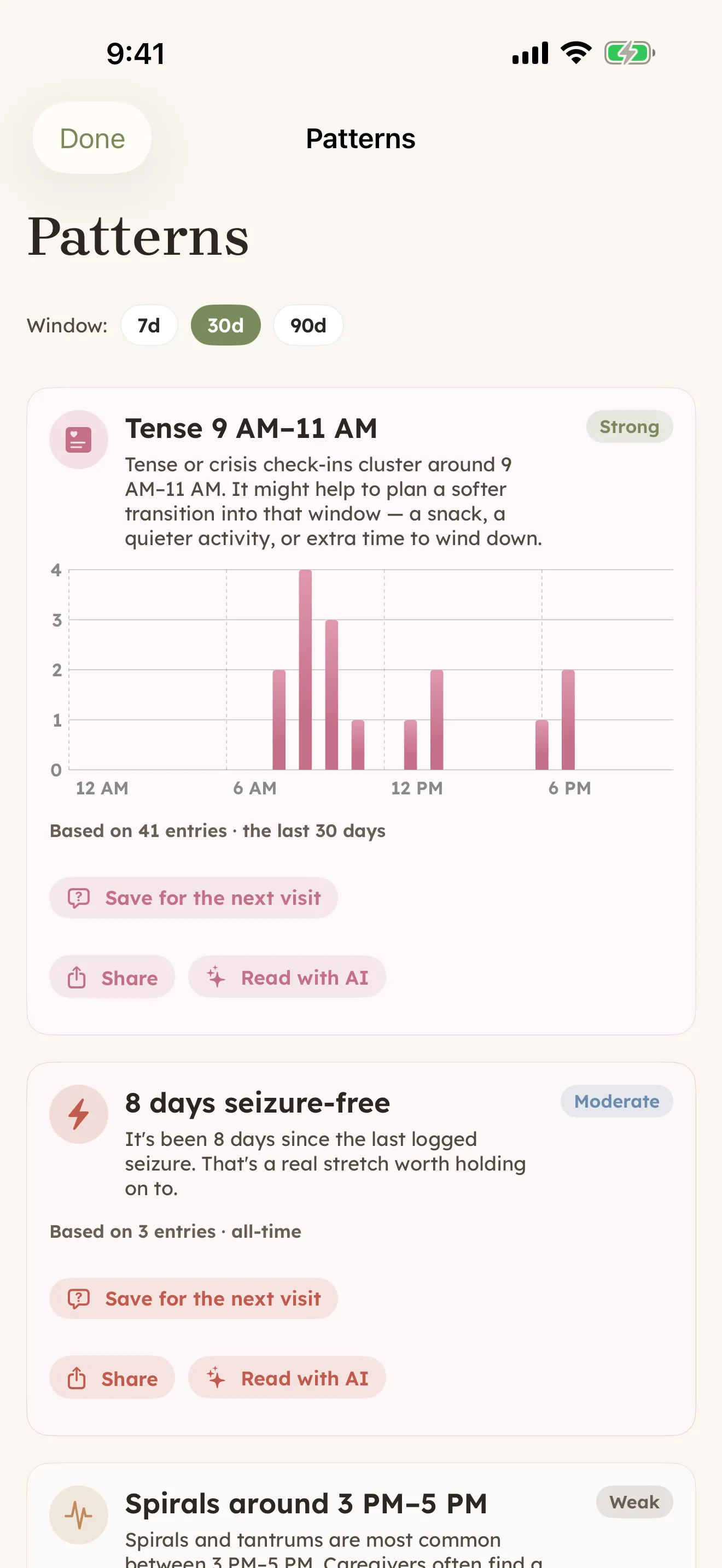
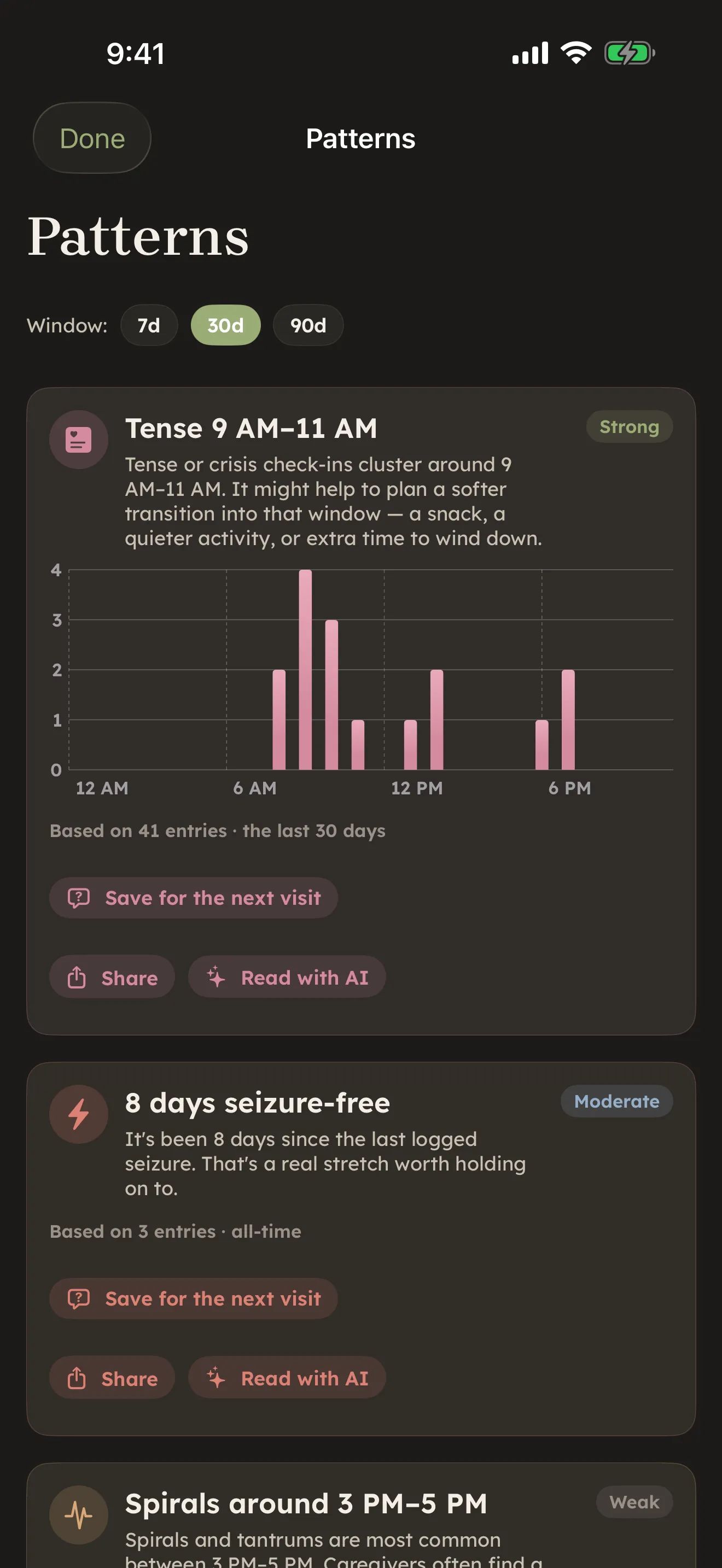
Some of the heaviest parts of caregiving are not the doing — they are the writing-it-up, the noticing, the explaining. CareHaven has a small set of smart features that take a first pass at exactly those things, so you start from a draft instead of a blank page.
On this page
These features are helpers, not the app. Every screen, log, and plan in CareHaven works exactly the same whether you ever tap one of them or not.
The on-device smart help needs a recent iPhone that supports Apple Intelligence (such as an iPhone 15 Pro or newer) with iOS 26 or later and Apple Intelligence turned on; without those, you simply aren't offered the drafts. Without on-device support, Ask uses its free built-in offline answers, or Online help for eligible general questions if your plan includes it and you have turned it on.
On your device, for every account Available
The on-device AI is free for every CareHaven account — no subscription needed. It runs entirely on your phone. It sends none of your care records, your person's name, or your family's details anywhere.
That is the default and it does not change unless you choose otherwise.
Online help — an optional step up (Plus and Family) Available
If you have a Plus or Family subscription, you can turn on Online help: tap the menu icon (top left) -> Settings -> Privacy, find the AI help section, and switch on Online help for more detailed answers. It is off until you do. The note under the switch tells you in plain words what happens: "CareHaven's AI works on your device by default - your family's care details stay with you." "CareHaven answers on your device by default. Turn this on to let CareHaven get more detailed answers to general care questions from a secure online service. Your records, logs, and who a question is about never leave your device - only the general question does, with personal details like names cleared out first." The app tries to remove identifying details, like who the question is about, before an Online help request, but it can miss some. Read it, ask yourself whether it fits your comfort level, then decide. (There is no separate pop-up screen; the switch and the note beneath it are the whole choice.)
Free accounts see the same switch. Turning it on saves your choice for later, and it takes effect once you upgrade to Plus or Family.
Online help lets the app route certain general care questions to a cloud service when the on-device AI's answer is not sufficient. A few things are always true when it is on:
- Only general questions can go out. The app checks each question before sending. Anything tied to a specific person — your person's name, a particular situation, personal details — stays on the device, even with Online help on.
- Names are stripped first, on a best-effort basis. Before a general question leaves your phone, the app removes names and other obvious identifiers it can detect. It's not perfect — it can't catch every name — but the service receives a cleaned-up question, not your person's profile or record.
- You are shown a source badge. Answers tell you where they came from — on-device, an offline knowledge card, or Online help — so you always know.
- Turning it off is one tap. Settings -> Privacy -> AI help -> Online help for more detailed answers. Everything reverts to on-device immediately.
If you do not have Plus or Family, or if you simply prefer to keep everything local, the built-in knowledge base still works — free, and fully private, right on your device.
How it stays private
What it will never do
Every smart feature is built to help you think, not to make medical calls. It will not diagnose. It will not tell you to start or stop a medication. It does not replace your doctor's judgment.
Where something looks like an emergency, the app points you to emergency help first. A good way to use these features is before an appointment, to understand what your care team might be weighing, so you can have a more informed conversation — not to decide anything on your own.
Drafts that save you the blank page
These take a first pass at writing, and you always edit and approve before anything is saved or shared.
Diary draft from your day. Available When you start a new diary entry on a day you have already logged a few things, you can tap to draft from today. In a few seconds the title and a short, first-person reflection fill in from what actually happened that day. Keep it, edit it, or clear it. Open a diary entry via + button -> Diary or Main Menu -> Track -> Diary. See Daily tracking.
Handoff narrative. Available On top of the structured handoff you build for a sitter, you can add a short, warm note in your own first-person voice that leads with what matters first — current state, cues for the next few hours. Tap to rewrite for a different version, or clear it. It travels with the rest of the handoff when you share. Reach it at Main Menu -> Team -> Handoff. Walk through it in Create a handoff for a sitter.
Weekly recap. Available Open your weekly recap at Main Menu -> Caregiver -> Reflect (Recap + Wins) and you can draft a few sentences that reflect on the week — one trend or notable moment, a quick summary, and a small forward-looking note. Move to a different week and the draft clears so you can draft fresh for that one.
Doctor-visit recap. Available After a doctor visit, you can draft a short, share-ready note from the visit's summary and follow-ups — the kind of message you would text a partner or grandparent to catch them up. Share it or copy it; rewrite or clear it. Open a visit at Main Menu -> Medical -> Doctor visits. More on visits lives in Medical.
Reply suggestions. Available In your communication log (Main Menu -> Care Plan -> Goals area, or via Main Menu -> Caregiver), you can ask for a couple of suggested replies to a message — for example one that acknowledges, one that asks a clarifying question, one that offers more. They are tone-matched to who you are replying to. Tap one to copy it, then paste it into Messages or Mail. See Advocacy & goals.
Cue auto-fill. Available In your cue guide (Main Menu -> Care Plan -> Cues), tap + at the top right to add a cue and describe what you noticed under The Cue — say, covers her ears when the dog barks. Once that description is at least four characters long, a Suggest meaning + response button appears; tap it to ask for a suggested meaning and a suggested response. Tap Use both to copy them into What It Means and What To Do, where you can edit either one, or tap Clear to drop them (Rewrite asks again). A suggestion never saves on its own — the cue is saved only when you tap Save.
Gentle noticing
These run quietly in the background and surface only when there is something worth a look.
A home pattern insight. Available On your Home screen you may see a short card that pairs two things it noticed across your recent week with one practical thing to try — a sensory swap, a timing shift, a check-in with the doctor. It carries the small on-device privacy note, and you can ask it to rethink, or dismiss it for the day. On a quiet stretch with little logged, the card simply stays away.
Pattern insights. Available From a behavior detail or a feeding pattern, open the entry (Main Menu -> Track -> Behavior or Main Menu -> Feeding) and tap into a record to find a plain-language read of what the logs seem to show. These are observations, never verdicts or diagnoses.
Personalized tips. Available The little tips CareHaven surfaces can quietly re-order themselves toward what is most relevant to you right now — for instance, nudging a self-care tip forward if you have not done a wellbeing check-in in a while. Focus Mode turns this off entirely.
Understanding and capturing
The vital-reading explainer. Available On any vital you have logged — a temperature, a blood pressure, a weight — open the entry at Main Menu -> Medical -> Vitals and tap the reading to open an explain-this-reading sheet for a plain-language sense of what it means. It is built with safety guardrails: it never diagnoses, and it points you to emergency help when a reading looks like one.
Document scanning. Available Scan an IEP, a school report, or an after-visit summary, and CareHaven can turn it into the things you would otherwise type by hand — goals, accommodations, follow-ups, medications, appointments — for you to review and keep. The scanner appears inside Main Menu -> Medical -> Documents and within the doctor-visit composer. The full walkthrough is Scan an IEP or doctor letter.
Natural-language search. Available Tap the Search pill (top right, "Search or ask...") and type the way you would speak — something like behaviors during nap times this month — and CareHaven turns that into the right filter and runs it. This sits alongside plain keyword search and free-form questions in Search & Ask CareHaven.
Ask CareHaven
You can ask CareHaven a free-form question in plain language — about a medication, a sensory strategy, a feeding approach, behavior support. Tap the Search pill (top right) and type your question in the "Search or ask..." box. It checks the knowledge built into the app first, then, if needed, sends your question — with obvious identifying details stripped first, on a best-effort basis — through the same on-device-first path. The answer carries the small source badge so you know where it came from. Available Search & Ask CareHaven covers this in full, including a clear line on what this help can and cannot do.
A note on the related ideas already cited
When CareHaven shows warning signs or "what to watch for" guidance tied to a specific condition, that content is written from named, public clinical sources and framed as what a care team may watch for — not as the app's own medical instruction. Those cited cards are a separate thing from the smart drafts on this page, and you will find them under Support tailored to a diagnosis.
You stay in control
Nothing here happens behind your back. Drafts wait for you to keep, edit, or clear. Noticing cards can be dismissed. Online help is off until you switch it on yourself. And the whole layer is optional — you can simply ignore it, and every part of CareHaven keeps working, with your data staying on your phone.