Support tailored to a diagnosis
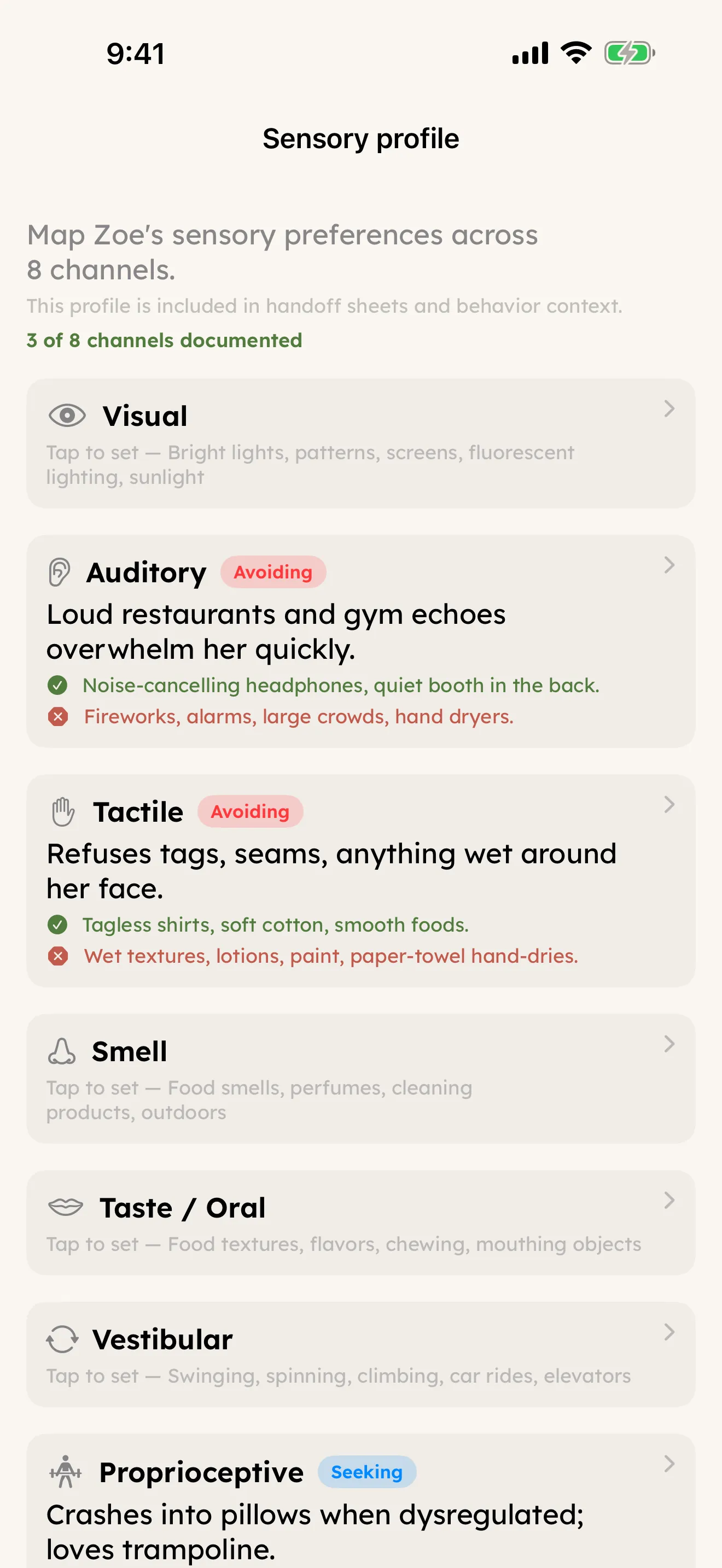
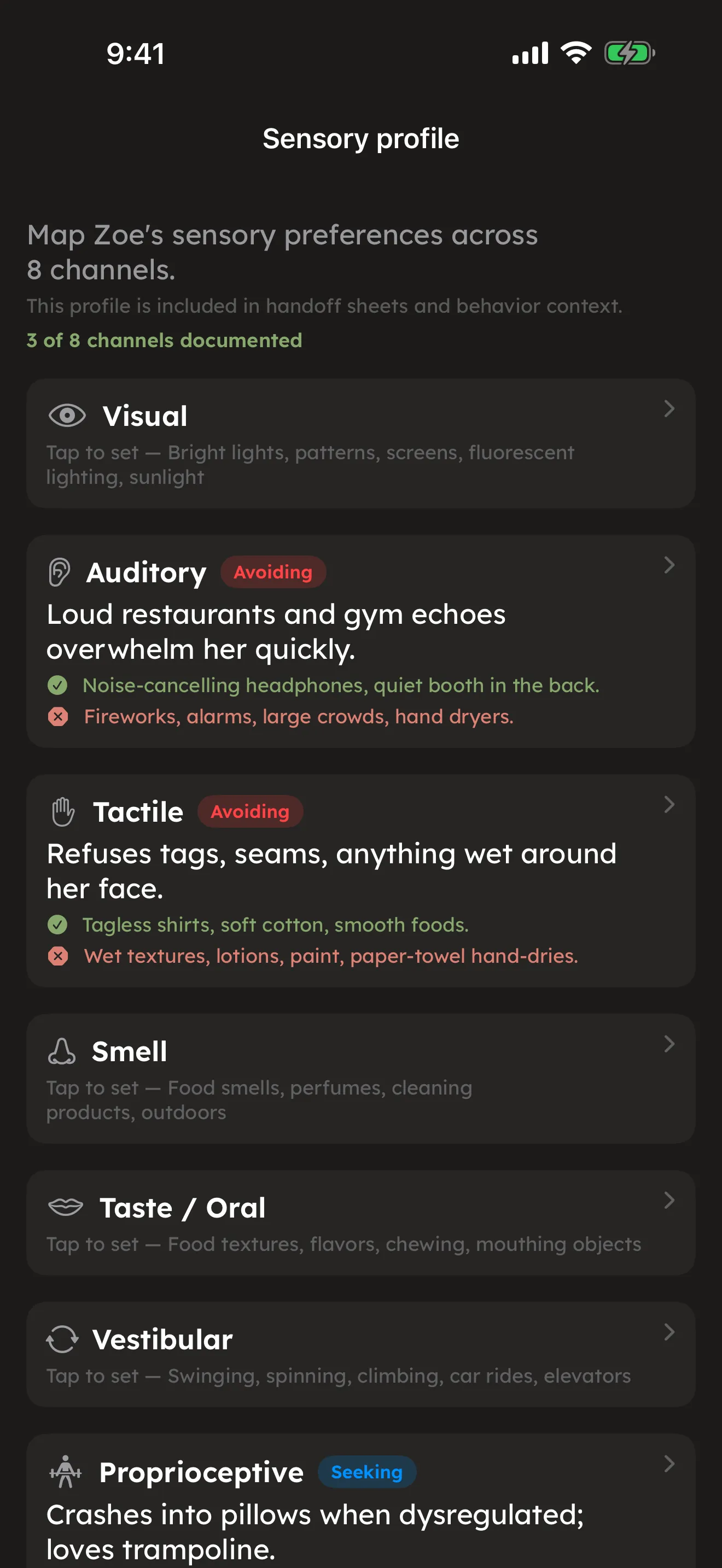
CareHaven serves families caring for someone with many different needs — autism, ADHD, epilepsy, cerebral palsy, Down syndrome, a feeding disorder, dementia, and more. No single family lives with all of those at once. So the app quietly reshapes itself around the conditions your person actually has, and keeps everything else out of your way.
On this page
This page explains how that works: how to tell the app about a diagnosis, the calm "where to start" guides for when something is new, the way certain conditions tailor a tracker or surface a plain-language card, and a dignified run-mode for teaching a skill or therapy routine one step at a time.
One promise underneath all of it: the app never implies a diagnosis your person does not have. Adding a tracker or logging something turns on the tool, not a label.
Telling the app who your person is
You set up a separate profile for each Person you care for, and you can keep up to twelve. When you add a diagnosis to a profile, the app does the rest.
To add or edit a diagnosis, tap the name pill (top center) to open the profile switcher, select the person, then tap their name or the edit button to open the profile. In the diagnoses field, type a condition and the app suggests matches as you go — it recognizes the condition by its everyday name, common short names, synonyms, or its clinical code (ICD-10 or DSM-5). CareHaven bundles 37 caregiver-voice diagnoses spanning developmental, behavioral, mental-health, feeding and GI, neurological, geriatric, chronic, and genetic categories. If what you type is not in the list, it still saves as plain text. Available
Tap any diagnosis anywhere in the app — in a profile, a sitter handoff, an emergency card — and a sheet opens with a plain-language explanation of what it is and a simplified version of what it means, plus the canonical ICD-10 and DSM-5 codes a clinician uses on paperwork. The same sheet cross-references conditions that are often seen together — autism with ADHD and anxiety, for example — and each of those related conditions is itself tap-to-define. Available
CareHaven does not diagnose. Everything it shows about a condition is reference text for you to bring to your care team, never the app's own medical direction. Every detail sheet says so.
Once a profile has an age and a diagnosis, other parts of the app can do more for you — recommended health checks, growth context, and tailored guidance all key off those two facts. See Medical.
"Where to start" when something is new
A new diagnosis can feel like standing at the bottom of a mountain. The Newly-Diagnosed "Where to start" companion is built for exactly that moment. It is a short set of calm, plain-language guides — reassurance, sensible first steps, what to expect, and questions worth bringing to your team — for the conditions CareHaven supports most deeply. Available
It also does one practical thing for you: a single tap brings the parts of the app that fit this person's diagnosis to the surface, so you are not hunting through features meant for someone else's loved one.
You will find "Where to start" at Main Menu -> Caregiver -> Where to start. See Caregiver tools.
How a condition tailors what you see
CareHaven shows the tools and tips that match your person's situation and hides the rest. A few examples of that tailoring you can see today:
Down syndrome milestone calibration
General developmental milestone charts can be discouraging for a child with Down syndrome, because they are drawn from the whole population. For a profile with Down syndrome, CareHaven shows Down-syndrome-specific developmental ranges right alongside the general-population ranges, so progress is measured against a fair, realistic picture rather than against a curve the child was never on. Available
Growth percentiles carry the same honesty. CareHaven calculates them on your device from the measurements you log, and shows a plain caveat noting that some conditions — Down syndrome, cerebral palsy, prematurity — can track along their own steady curve, well above or below the average band, and that this can be perfectly healthy. The trend over time is what matters, not a single number. See Medical.
Recommended health checks that fit the person
Different conditions come with different recommended check-ups at different ages — thyroid and hearing checks with Down syndrome, hip x-rays and tone treatment with cerebral palsy, a medication review for an older adult. CareHaven's Health Watch seeds a sensible set of recommended checks based on the person's age and recorded needs, in plain language, and keeps them in one calm place so nothing quietly lapses. It is reminders only, never medical advice, and never a red overdue wall. See Medical. Available
Dementia and elder care
For dementia and elder care, CareHaven brings together memory-care tracking, behavior episodes, PAINAD pain observations, Mealtime Watch, scripts for hard moments, advance directives, the Letter of Intent, What Helped rollups, night capture, and doctor-ready summaries. The roadmap continues with a prepared wandering response and early-stage decision support. See Dementia & elder care. Available
Plain-language guidance cards for certain conditions
For some conditions, CareHaven surfaces a short, cited "what to watch for" card in the most relevant part of the app — gentle signs worth noticing and everyday steps that help, framed as what a clinician watches for, with no jargon and no diagnosis. Cards available today include:
- A swallowing-trouble card for a person on a texture or thickness order, and a Parkinson's "what to watch for" card in the Body Care area, with day-to-day tips that also carry into a sitter handoff. Available
- An epilepsy "what to watch for" card in the Medical area, gathering seizure warning signs along with tracking, trigger, and rescue-medication tips, and linking straight to seizure first aid. See Medical. Available
These cards appear only when they fit. On a person without that condition, the card stays out of the way.
When you want fewer special-needs surfaces
Not every caregiver wants the full set of special-needs tools. General Caregiver Mode is an opt-out toggle that hides the special-needs-specific surfaces, leaving a calmer, more general care app. Turn it on or off at menu icon (top left) -> Settings -> General Caregiver Mode. See Make it yours. Available
Care Stance — telling the app how you approach care Available
Every family has a different way of thinking about their person's condition. Some families with an autistic child lean toward supporting how their child is wired — the communication style they already use, the sensory approaches that help, the spaces where their child thrives. Others are focused on building new skills and routines. Many sit somewhere in between, and that can shift over time.
Care Stance is a simple preference, set by you, that tells the app where your family tends to sit. It gently reorders the sections inside that person's hubs to put the things that match your approach closer to the top — so what you reach for most often is what you see first.
Where to find it
Care Stance lives in the person's Passport. To set it:
- Go to Main Menu -> Safety -> Passport.
- Scroll to the care approach section.
- Tap the option that fits best. You can change it any time.
Care Stance is set per person and per condition. If your person has more than one condition that Care Stance supports, you will see a separate picker for each one.
What it does (and what it does not do)
Care Stance reorders sections inside hubs. It does not hide anything. Everything that was visible before remains visible — it is only the order that shifts, to put what matters most to your family a little closer to the top.
For an autistic person, the choice you make sets which surfaces rise. Affirming who they are lifts the sensory, preferred-foods, memories, and reflection surfaces. Building skills and structure lifts the skill routines, behavior plans, goals, and cues. A bit of both blends the two. It is set per person and per condition, so if your person has more than one condition that Care Stance supports, you will see a separate picker for each one — and you can change or skip it any time.
Safety sections never move. The sections covering emergencies, crisis plans, medications, and what-to-watch-for guidance stay exactly where they are, no matter how Care Stance is set. Reordering is for comfort and fit; the safety floor does not bend to it. For an adult, some sensory and school-age sections may not apply, so the re-order does less there.
Which conditions Care Stance supports
Care Stance is available for the following conditions:
- Autism — Support how they're wired / Build skills and structure / A bit of both
- ADHD — Support how they're wired / Build skills and structure / A bit of both
- Dementia / Alzheimer's — Comfort and connection / Skills and engagement
- Epilepsy — Seizure readiness / Everyday living
- Cerebral palsy — Communication-led / Mobility and independence
- ARFID — Reduce pressure / Build variety
If your person's condition is not in this list, Care Stance does not yet apply — but the app still tailors what you see based on the diagnosis, age, and other profile details. More conditions will be added over time.
A note on how it works
Care Stance is stored on this device. If you use CareHaven on more than one phone, you will need to set it separately on each device. It is not carried in a backup, so if you restore from a backup you will be prompted to set it again.
Recording your approach in your own words
Care Stance reorders sections to match your approach. But your approach is also worth writing down in plain words, so anyone caring for your person uses your priorities and your language — not a generic script.
Families approach the same diagnosis in very different ways. Some lean affirming and acceptance-first; others are more skills- and goals-focused. There is no single right answer, and CareHaven does not pick one for you. What matters is that everyone caring for your person knows your approach.
To record it:
- Open the Passport in the Safety hub.
- Use Important to know for your overall approach and values — for example, how you talk about the condition, or the words you prefer.
- Use What helps for the day-to-day that fits that approach.
A sitter, relative, or new clinician can then read the Passport and care for your person the way you would. (Search care approach or philosophy to jump straight to the Passport.)
Your approach is yours to set. For clinical questions, talk with a licensed clinician — this is not medical advice. If you write about a treatment or approach that is known to be unsafe or unproven, CareHaven may show a calm, optional note suggesting you talk it over with your care team and pointing to a trusted source. It never changes or blocks what you wrote.
Skill and therapy routines
Teaching a skill — brushing teeth, getting dressed, a home stretch program, a step-by-step food exposure — is slow, repetitive work, and it is easy to fall into the trap of "it's faster if I just do it myself." Skill routines are built to break that trap and to make slow progress visible. Find them at Main Menu -> Care Plan -> Skill routines. Available
Build a routine
- Tap Main Menu -> Care Plan -> Skill routines, then the + at the top right (or Add a routine if the list is empty).
- A New routine menu pops up. Choose a kind: Skill builder, Stretch & move, Food ladder, or Growing up. The kind cannot be changed after you save.
- Under Name, give it a name, like "Brush teeth." If you leave it blank, the routine takes the kind's name. A Short description (optional) goes below it.
- Under Where they're at, choose the Help level now: Hands-on help, I show, they copy, I tell them, I point, They follow the pictures, or On their own. A short line under the choice says what it means. This is how much prompting they need today.
- Under Steps, type the first step ("Put toothpaste on the brush"). Under it, Spoken cue (optional - read aloud) holds what you want said for that step; leave it empty and the app reads the step itself. Tap Add step for each next one. To reorder the steps, tap Edit at the top right and drag them. Swipe a step to delete it.
- Under How it runs, two switches shape run mode: - Read each step aloud (on to begin with) reads each step's spoken cue, or the step itself if it has no cue, as it appears. - Show as a picture strip (first-then) (off to begin with) adds a small "then: [next step]" line under the current step, so they can see what comes next.
- Tap Save (top right).
To change a routine later, open it and tap the pencil at the top right. Every setting above, except the kind, can be changed.
Run mode: one calm step at a time
When it is time to practice, go to Main Menu -> Care Plan -> Skill routines, open the routine, and tap Start. This is the dignified part: one big step shows at a time, with a giant Next button, and with the volume up each step's cue is read aloud. You can replay any step's cue. At the end there is a warm "All done."
If Read each step aloud is on, each step is spoken as it appears, and the Say it again button under the step (it shows when the step has a spoken cue) says it once more. If Show as a picture strip (first-then) is on, a line reading "then:" and the next step sits under the current one. Tap Done at the top left to stop early.
Then, privately — just for you — the app asks how much help each step needed, with three equal, encouraging choices: We did it together, A little help, or All by myself. There is no red, and no notion of failing.
Watch the help fade over time
Run the routine across different days and the routine's detail screen quietly builds a picture of progress: a gentle streak showing how many days in a row you have shown up, and an "on their own" rate that climbs as you mark more steps "All by myself." Each run is stamped with the help level at the time, so the trend stays honest even as your person needs less.
The help level always moves by hand, by you — the app never advances it on its own. After a few runs, a small guidance card may offer a gentle thought: that they seem ready to ease up to a lighter prompt, that one particular step has stalled and might need a new angle, or that they needed more help than usual lately and it is worth checking the everyday things first — sleep, illness, a missed meal, a big change. It is a suggestion to consider, never an instruction.
Reading the guidance card
Once you have run a routine a few times, its detail screen shows a small guidance card that quietly reads your check-ins and offers a gentle next-step thought. It never changes anything on its own — it only suggests, and you decide. There are three nudges it may give:
- "Ready to ease up?" — they are doing this mostly on their own lately. It may be time to step down to the next, lighter help level — for example from a verbal cue to just a gesture, or from a gesture to pictures only.
- "One step needs a new angle" — one particular step has needed help for several sessions in a row while the rest move ahead. Try breaking that step into smaller pieces, or drop it back a help level so it stops being the sticking point.
- "More help than usual" — a recent dip, where they needed more help than they had been. If that surprises you, it is worth checking the everyday things first: sleep, illness, a missed meal, a big change, or a noisy day.
You move the help level, not the app. The prompt-fade stage is always advanced by hand, by you — the guidance is a suggestion to consider, never an automatic change, so you stay in charge of when they are truly ready to ease up.
This picture travels with you. Handoff briefs include how much help each routine needs, so a sitter or substitute caregiver knows the right level of prompting to give — not too much, not too little. A developmental / therapy review visit brief summarizes how each skill is fading, ready to bring to an OT, PT, or IEP meeting. And the guidance and history are included in your data export and encrypted backup, so the progress picture is never trapped in one place.
Tip: Treat the guidance as a second pair of eyes, not an instruction. "Ready to ease up?" is a good moment to try the lighter prompt once and see — if it is too soon, just stay where you are and try again in a week.
It travels with you
Skill routines ride along where they are useful. A sitter handoff now includes how much help each routine needs, so a backup caregiver gives the right level of prompting — not too much, not too little. A developmental and therapy review brief summarizes how each skill is fading, ready to bring to an occupational therapist, physical therapist, or an IEP meeting. And the progress is included in your encrypted backup, so it is never trapped in one place. See Caregiver tools and Sharing & reports.
A few extras for skill routines are on the way as a fast-follow — per-step photos, linking a routine to a goal, an Apple Watch view, and a Home reminder card. Until then, a calm symbol stands in for a step photo. Coming soon
Keeping a sibling in view
The brother or sister of a child with complex needs — sometimes called a "glass child," easy to see straight through to the louder needs around them — carries a quiet weight of their own, and theirs is the easiest one-on-one time in the house to lose to the day's louder demands. Sibling Spotlight keeps them on the radar: a light profile (not a full care record), a gentle one-on-one-time nudge, a simple feelings check, and plain-language words for the hard questions. Find it at Main Menu -> Care Plan -> Sibling Spotlight. Available
A light profile, not another chart
Add a sibling with just a name — and an age, if you'd like the talking points tuned to them. To add one, go to Care Plan -> Sibling Spotlight -> add (+): name them, note brother or sister, optionally add a birthday, and set a one-on-one-time nudge (weekly by default; turn it off if you would rather not be reminded). It is deliberately light. This is not one more person to log around the clock; it is a place to hold the few things that help you show up for them.
A nudge for one-on-one time
Set roughly how often you'd like to aim for dedicated one-on-one time, and CareHaven quietly keeps track. When it has been a while, a soft "sibling time" card appears on Home — never an alarm, never red, just a "they're on the radar" prompt you can act on or snooze for that person. To record time together, tap the sibling and choose Log one-on-one time when you get a little dedicated time together; a gentle "time together" tag appears when it has been a while. Note a bit of one-on-one time and the clock resets, and over the weeks a quiet "you showed up" count builds from the moments it is easy to forget you made. Available
A feelings check
Siblings often carry big, tangled feelings they don't yet have words for — pride, worry, jealousy, and fierce love, sometimes all at once. A light feelings check gives you somewhere to note how they seem to be doing — a high, a low, a hope — or to jot a shared-moment note, so a pattern you might otherwise miss has a place to land. The app only tracks that check-ins happen (a quiet streak); the feelings themselves stay private and optional. Available
Age-appropriate talking points
How you explain a brother or sister's needs to a four-year-old is not how you explain it to a fourteen-year-old. Tap Talking points for age-appropriate, plain-language ways to answer the questions siblings actually ask — "why is my sibling different?", "did I cause it?", "what do I tell my friends?", and "what happens later?" — written separately for little kids, big kids, and teens, so you are not hunting for the right words in the moment. Available
Sibling Spotlight is intentionally simple today: it is here to keep a sibling from quietly slipping to the bottom of the list, not to add another tracking burden.
If a sibling is really struggling, consistent one-on-one time and honest, age-appropriate information help a lot — but if you see lasting sadness, anxiety, or withdrawal, a counselor or a sibling-support group (like Sibshops) can be a real gift to them.
More tailored support is coming
CareHaven's plan is to grow deeper support for each condition over time. Many condition-specific tools are on the roadmap and not yet built — for example: situation stories and a sleep-routine builder for autism; a daily report card, a reward board, and a medication coverage timeline for ADHD; trigger capture, a doctor-ready seizure video, and a postictal recovery check-in for epilepsy; a brace-and-skin check and a therapy-and-specialist map for cerebral palsy; a transition-to-adulthood planner and skill snapshots for Down syndrome; a benefits keeper for intellectual disability; and the deeper dementia and elder-care tools listed in Dementia & elder care. Planned
When any of these ships, it will show up only on the profiles it fits — the same quiet, condition-aware way the app works today. To follow what is coming, see Known limitations & what's coming and What's new.
A note on privacy and honesty
Two principles hold across everything on this page. First, your care data lives on your device and, if you sync, you choose which caregivers to invite, and only a condition's code — never your person's name or any personal detail — is ever sent for a plain-language explainer lookup. See Privacy & security. Second, the app recognizes and routes; it never decides. Calibration tells you what is realistic for a condition, but anything safety-related is framed as what a clinician watches for, and the dedicated emergency tools — first aid, crisis plans, the emergency screen — own the real thresholds and steps. See Safety & crisis plans.