The Home screen (Day Shape)
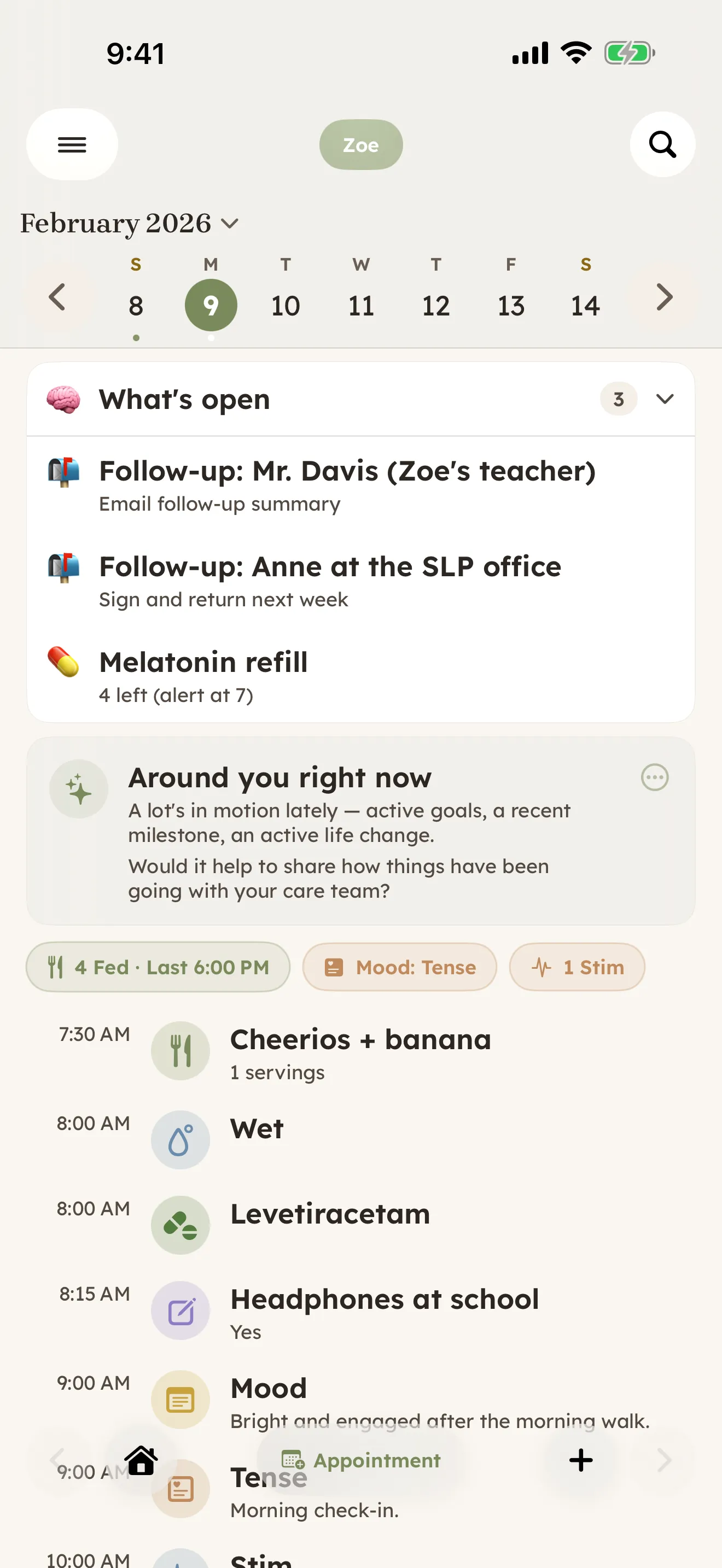
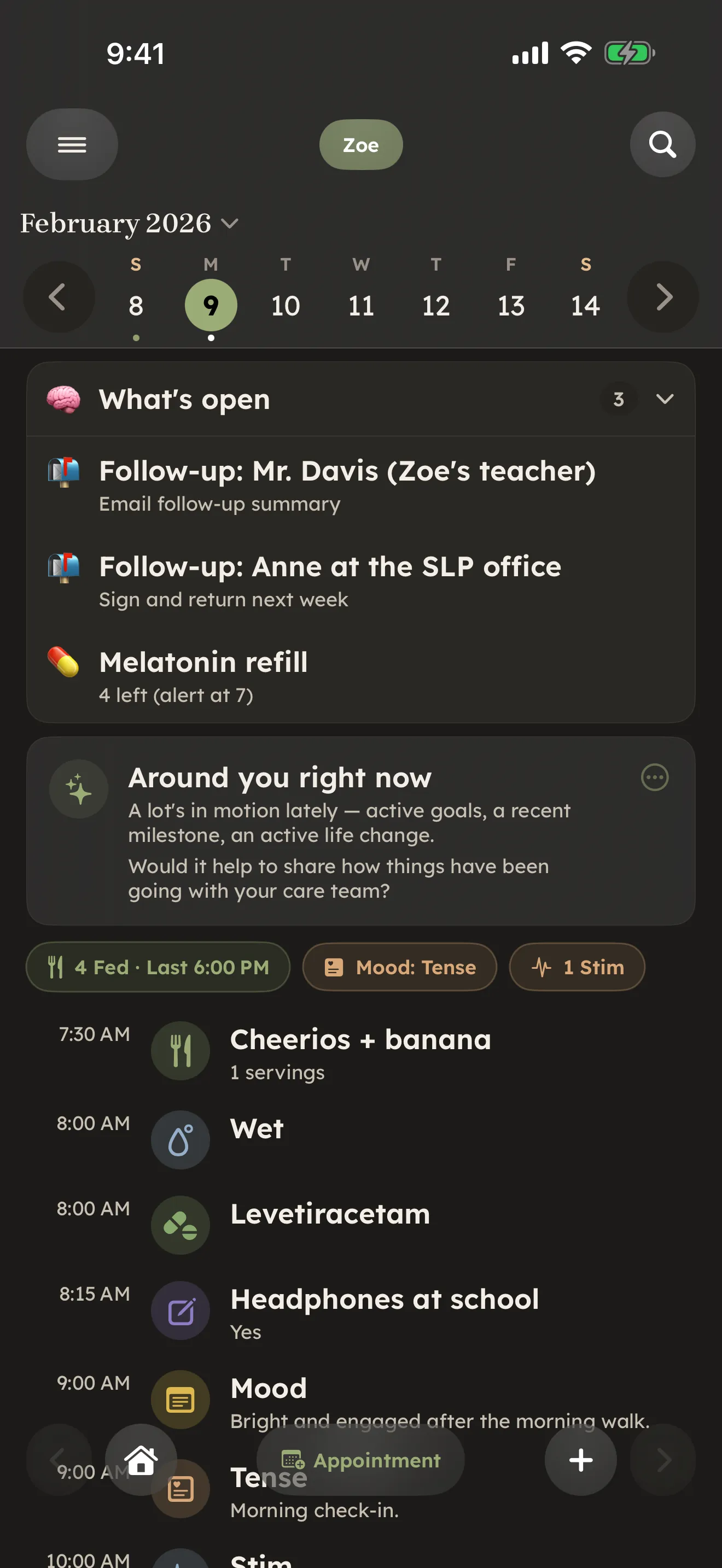
Home is where you land, and where most of your day happens, laid out as the shape of the day: the things you log, in the order they happened, with the few things that actually need you today gathered at the top. You don't have to go hunting. The day comes to you.
On this page
This is the heart of CareHaven. You can do most of your daily logging here without ever leaving the screen.
Picking the day
Near the top of Home is a short strip of days. The selected day sits a little larger, so you always know where you are. Tap any day to jump to it. Weekends are tinted so they stand out at a glance, and the week starts on whichever day you prefer (you can set Sunday or Monday).
When you change the day, the whole screen follows. Everything below the strip belongs to the person you've chosen, on the day you've chosen.
To switch between the people you care for, tap the colored pill in the top-center of the screen. Each person has a color and a name, and tapping a name swaps the entire screen over to them. You can keep a separate profile for each person you look after, up to twelve on one device. Available
Care Day — one person, or several, at once
By default, Home follows one person at a time — whoever's pill is showing. If you're juggling more than one profile, Care Day lets you widen that view instead of switching back and forth all day. Tap the person pill, then look for Care Day in the switcher: choose All to see everyone's timeline interleaved on Home, each entry tagged with a small colored chip so you can tell whose is whose; Active only to keep it to the one person you last selected; or pick a custom mix of specific people. The same setting carries over to Schedule, so Home and your calendar always agree on who you're looking at. Available
The day's timeline
Below the day picker is the timeline, the running record of what happened. Feedings, behaviors, sleep, medications given, regulation check-ins, notes, and more all appear here in the order they occurred. It's the same picture a glance gives you in real life: what kind of day it's been so far. Available
Tap any row to open its full detail, where you can read everything, make edits inline, or remove it. A medication row shows whether the dose was given or missed, and you can tap to change that. To delete an entry, swipe it away (you'll be asked to confirm first).
If the list gets long, you can tap the timeline heading to collapse it and give your eyes a rest. CareHaven remembers that you'd rather keep it tucked away.
Logging right from Home
You don't need to dig into menus to add something. Tap the round + button (just right of center on the bottom row) to open the quick-log grid, then choose what you're recording — + → Feeding, + → Behavior, + → Meds, and so on. CareHaven walks you through a short, plain form, you Save, and the new entry drops straight onto the day's timeline. Available
Because the + button is always there, capturing a moment takes a few seconds, even one-handed. That's the point: get it out of your head and into the app before it slips away.
For more on moving around the rest of the app — the Main Menu, Search, and the SOS button in the top-left Menu — see Finding your way around.
The briefing at the top
Above the timeline, Home surfaces the handful of things worth your attention right now, so you're not buried under a stack of banners. CareHaven shows at most two of these cards at once (one in Focus mode), most important first. Available
What's on you right now. This card sits at the top and carries your mental load, the running digest of what's on your plate. A calm "nothing needs you right now" is a real, welcome state here, not an empty screen.
A gentle pattern, when there is one. When CareHaven notices something quietly worth knowing, it can offer one non-obvious read of the last week or so, drawn from your own entries. It's an observation, never a verdict and never a diagnosis. On a device with Apple Intelligence turned on, this card is written right on your device; without it, you simply won't see this card. You can read more in Smart help. Available
On This Day. Now and then a memory resurfaces from this same date a year or more ago, a milestone, a diary note, or a good moment. A small, warm reminder of how far you've all come. Available
Streaks and gentle nudges. Small celebrations when you've kept something up, a friendly nudge when it might be time to check in with yourself, and the occasional quiet tip. None of it nags. If a check-in with yourself goes a while without one, a soft banner offers the Wellbeing self-check. Available
At-a-glance attention cards
When a specific situation is building for the person you're viewing, a focused card can appear so you catch it early. CareHaven shows at most two of these cards at once (one in Focus mode), most important first — it will never bury today's events under a stack of banners. Tap the card to open the feature behind it; tap the small x to snooze that nudge. Available
- Mealtime, worth a closer look — when a refusal or swallowing pattern starts to build.
- Off baseline — when two or more of someone's usual signals are different at once.
- Time for a break — when your break-goal window has gone by without one.
- A little time with a sibling — a gentle one-on-one nudge.
- Around you right now — a quiet, reflective note, not a task. It appears when something recent is worth noticing (a milestone from the last two weeks, or a life change that is active and was added in the last two weeks) and there are at least two things in play for the person, counting their active goals. It gathers them into one line, for example "A lot's in motion lately — active goals, a recent milestone." Under that line is one question to think about with your care team, such as "Would it help to share how things have been going with your care team?" Tap the card to open Milestones or Life Changes, whichever is the more recent. Tap the ... on the card and choose Dismiss for today to put it away until tomorrow, for that person only. Available
- A decision to revisit — when a care decision you logged has reached the date you set to look at it again, a gentle card brings it back so a "let's check this in three months" doesn't quietly slip past. Tap it to reopen the decision in your Decision Log. Available
- To-dos — when the person you're viewing has an open to-do, Home shows one card for the most urgent one: overdue first, then due today, then coming up, then ones with no date. It names the to-do and says "Overdue", "Due today", or the due date. When more than one to-do is open, a small number beside the title shows how many. Tap the card to open the full To-dos list. A General to-do (one that isn't about a particular person) never appears here. This card has no snooze x; it goes away when nothing is open. Available
Snoozing is per person. Quieting a card for one profile never hides a real flag on another. The medical-leaning cards (mealtime, off baseline) return the next day; the gentler nudges rest a few days before they speak up again.
These same situations can also reach you as opt-in notifications, the Care Nudges, so you don't have to be looking at Home to catch them. You only ever get a nudge for a feature you've actually set up, and you can turn them off in Settings. See Caregiver tools for the features behind them. Available
Care Nudges
Care Nudges are the gentle, opt-in reminder version of those Home cards, for the easy-to-forget care that isn't an appointment or a medication. There are four, and each surfaces at a time of day that fits it: Available
- Time for a break — when your break-goal window passes with no break logged. Surfaces around 10am.
- A little time with a sibling — when a sibling is past the one-on-one cadence you set in Sibling Spotlight. Surfaces around 5pm.
- Mealtime, worth a closer look — when Mealtime Watch has seen a refusal or swallowing pattern over recent meals. Surfaces the next morning.
- Someone seems off baseline — when Baseline & Change Watch has a couple of signals drifting from usual at the same time. Surfaces the next morning.
Care Nudges are on by default, but you'll only ever get one if you've actually set up the matching feature — a Break Plan, a sibling, and so on. The first time you create a Break Plan or add a sibling, the app asks once for permission to send notifications so it can remind you.
To turn them off, open Settings → Menus & Quick Log → Features and switch off Care Nudges. They sit just under Local Notifications — if that master switch is off, no nudges fire at all.
They respect your snooze, too. If you dismiss one of these cards on Home, the matching notification stays quiet for the same stretch — the gentle nudges rest a few days, the medical ones return the next day. A nudge also cancels itself the moment the situation clears: you take that break, log the one-on-one time, or mark the change resolved. Tapping a nudge opens straight to the right place — Take a Break, Sibling Spotlight, Mealtime Watch, or Change Watch.
A few words on calm
If the briefing area ever feels like too much, Focus Mode strips the decorative cards from Home and keeps uninvited popups away, leaving just the day in front of you. You'll find it among the ways to Make it yours. On a quiet day, with nothing that needs you, Home stays quiet too. That's by design.
The Home screen exists to carry the weight, not add to it. Log what you can, glance at what's surfaced, and let the rest wait until you're ready.