Privacy & security (in depth)
You are trusting CareHaven with the most sensitive details of your family's life — diagnoses, medications, seizures, hard days, hopes for the future. This page explains, in plain language, exactly how those details are protected. The short version: your care log lives on your device, protected by your iPhone's own encryption and lock. If you choose to sync, you choose which caregivers to invite and which sections to share, and each signs in with their own Apple account. We never sell your family's care information, and the app does not track you. It does check our website for updated help and safety files on its own, and our web host then sees your phone's IP address.
On this page
- Your care records are yours
- No CareHaven account, and no tracking
- Privacy at a Glance — a live look at what's stored and shared
- Encrypted backups
- PIN and Face ID, with idle auto-lock
- Smart help is private by design — and stays private by default
- Resetting CareHaven completely
- Handoff and Care Card links, hardened
If you want the gentle one-paragraph version instead, read Privacy comes first.
Your care records are yours
Every entry — logs, photos, transcripts, notes, voice dictation, everything — lives in your iPhone's own protected storage, secured by your device's encryption and your passcode or Face ID. The app works fully offline.
Your care records are yours. You choose which records to share and which caregivers to invite. We never sell your family's care information. Today, we don't have access to the care log stored on your device or in your private iCloud.
Available
No CareHaven account, and no tracking
You never make a CareHaven account. There is no email-and-password to create, no login screen, no profile on a website somewhere. You open the app and start using it.
The CareHaven app also does not track you. It uses no third-party analytics tools, and it does not follow you across other apps or websites. The app's privacy declaration to Apple is the simplest one possible: data not collected, tracking none. The carehaven.org website is separate: its privacy page explains its visit counter and ad cookies.
Available
Privacy at a Glance — a live look at what's stored and shared
CareHaven gives you a live view of its privacy posture — not a static promise, but a real-time look at what's actually on the device, what's encrypted, and what's shared. It shows:
- The number of profiles and events stored locally — counted straight from the database, not estimated.
- Whether your storage is encrypted (AES-256).
- Your sync status — on or off, and which sections are shared with whom.
- AI access — when CareHaven sends a question to a smart-help service, what gets stripped out first, and the on-device-first order it prefers.
- Any active caregiver invites.
The point is that the privacy posture isn't abstract. The promise is that we can't read your care log, and the live counts let you check what's stored and what's shared. A few features send a small piece when you use them or allow them, like a medicine name for a lookup; the privacy page has the details. A regulator, a custody mediator, or a privacy-conscious family member can see exactly what's on the device in about ten seconds.
A tip: show this screen to a substitute caregiver before you hand over the phone. Seeing the privacy posture spelled out lowers the trust friction.
Available
Encrypted backups
You can save a backup of your CareHaven records to a single file. Some things stay out of that file by design, such as your Care Stance setting (it lives only on this device), shared to-do lists and their tasks (they travel through sharing instead), and imported chart evidence you have not added to your records. For coverage highlights and exclusions, see What travels in a backup. That file is locked with strong encryption (AES-256-GCM) using a backup password you choose. Without that password, the file is unreadable — even to you, so keep the password somewhere safe.
You can back up by hand whenever you like, or set up an automatic schedule so a fresh backup is made for you. A backup made on your iPhone can be restored to your iPad or another device, which makes moving to a new phone straightforward.
A good habit: keep one backup in cloud storage and one somewhere else, like an external drive. Cloud-only is one bad day away from full loss; one copy in two places is much safer.
For the step-by-step, see Back up & restore your data.
Available
PIN and Face ID, with idle auto-lock
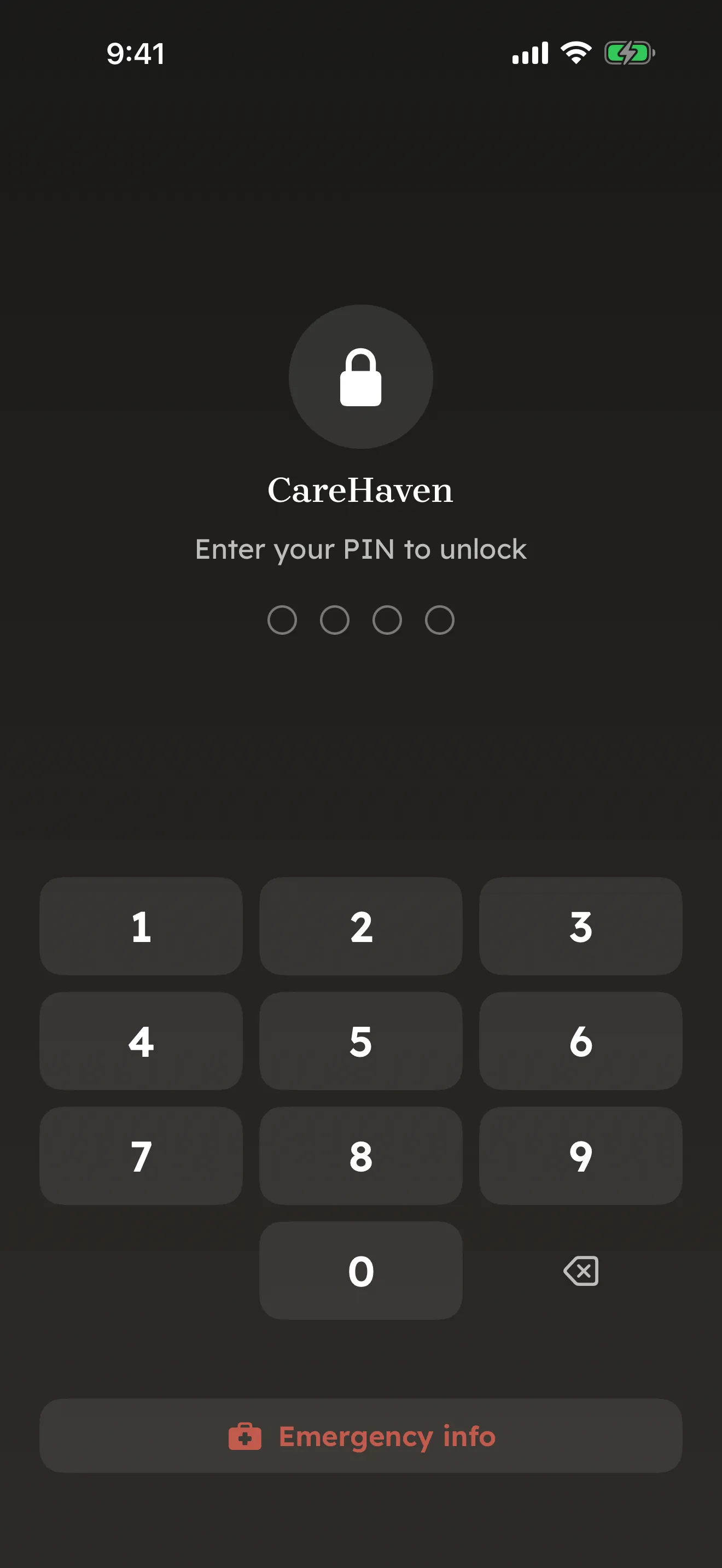
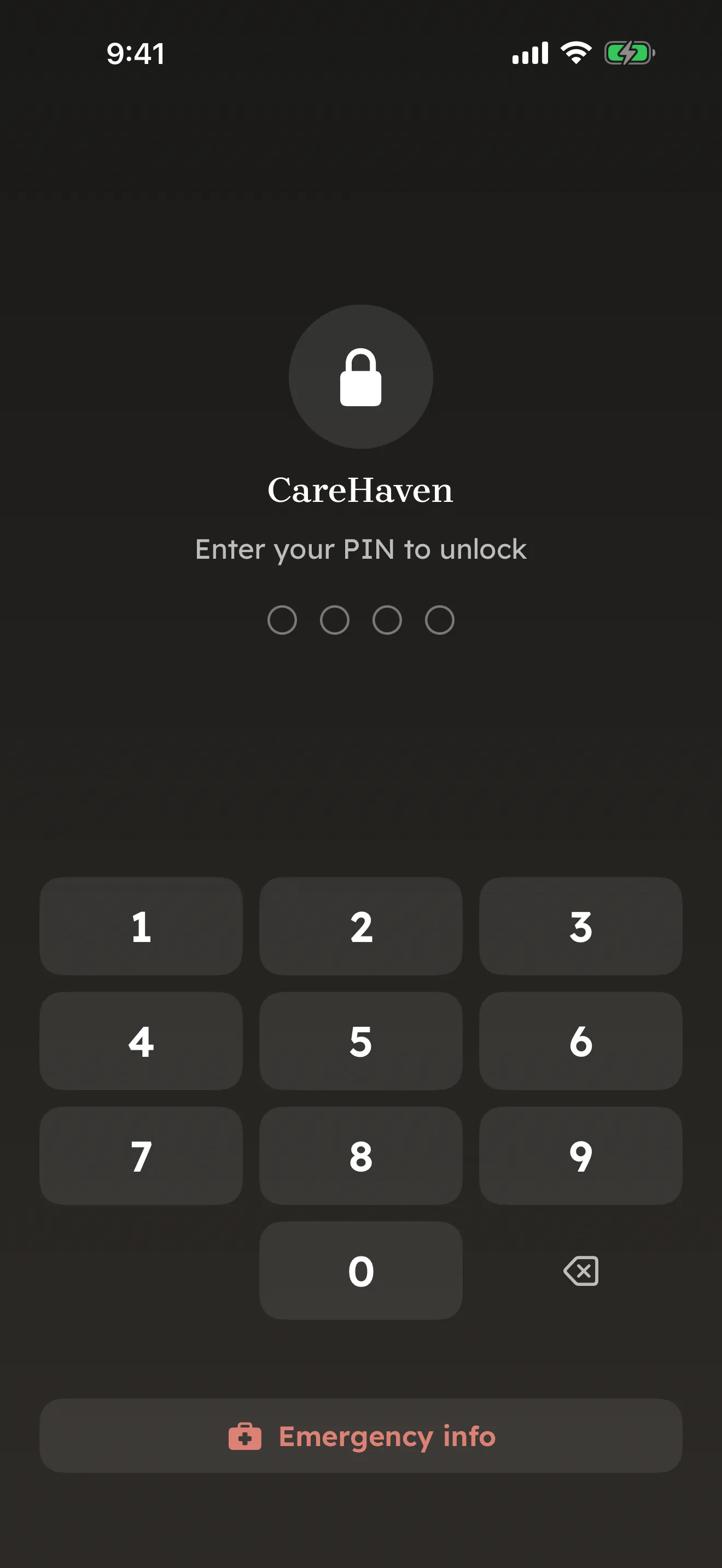
You can set a 4-digit PIN to lock the app. Once a PIN is set, the lock screen appears when you open CareHaven and when you come back to it after it has been in the background for longer than your Auto-lock setting. This is genuinely useful when the phone might be seen by others — a clinic waiting room, a school meeting, a busy kitchen.
The lock is checked when you return to the app, not while it sits in the background. Until you come back, iOS may still show the app's last screen as a small preview in the app switcher; that preview is outside the app and is not something the PIN can hide.
When you have a PIN set, you can also unlock with Face ID, so getting back in is quick for you while staying closed to everyone else.
Emergency info on the lock screen. Even with a PIN set, the lock screen has an Emergency info button below the number pad. Tap it and CareHaven opens the SOS screen for the profile you were last viewing, without asking for the PIN. That way a paramedic, a school nurse, or a sitter can reach what they need in an emergency without guessing a code. SOS has five tabs along the top: Emergency (your emergency contacts and crisis lines), Emergency Action Plan (EAP), Care Card, Fatal Five, and Protocols. See Safety & crisis for what each one holds. Available
Set a PIN. Available
- Tap the menu icon (top left) → Settings → Privacy.
- Under Privacy & Lock, tap Set Up Unlock PIN.
- Choose a 4-digit PIN. CareHaven then asks you to confirm it: enter the same 4 digits again.
Once a PIN is set, that same section shows Change PIN and Remove PIN. If your phone has Face ID, a line also tells you it is available. Below those, the Auto-lock menu sets how long the app may sit in the background before it locks again: Immediately, After 1 Minute, After 5 Minutes, After 15 Minutes, After 30 Minutes, or Never. Immediately means the PIN screen shows every time you come back.
A backup password just for your backup files
Separate from the PIN, each encrypted backup is locked with a backup password. For a manual backup, choose a password when you use Settings → Sync & Backup → Export Encrypted Backup. This export does not save the password, so you need it again to import the file. Automatic backups use a separate password that is saved in this device's Keychain.
Creating a backup: go to Settings → Sync & Backup → Export Encrypted Backup, enter your backup password, and the app makes a .chbak file and offers it through your device's share sheet. From there you can save it to your cloud storage, email it to yourself, or share it however you like.
Restoring a backup: go to Settings → Sync & Backup → Import Backup, pick your .chbak file, and enter the backup password. When it finishes, review the restore summary. It shows what was Imported, anything Not imported, anything Still connecting (links waiting on a record the backup did not include), and any Warnings.
A good habit: back up weekly, or before any major app update, and keep the file in cloud storage so it's reachable from any device. Keep the password for each manual export somewhere safe; CareHaven cannot recover it, and without it the file can't be opened.
Available
Smart help is private by design — and stays private by default
CareHaven's smart help is private by design: it runs on your device, and obvious identifying details — like the name of the person you care for — are stripped out on a best-effort basis before any request leaves your device. It's not perfect (it can't catch every name), but it meaningfully lowers what's exposed. This is true for every account, no subscription required.
If you have a Plus or Family subscription, you can choose to turn on Online help: tap the menu icon (top left) → Settings → Privacy, find the AI help section, and switch on Online help for more detailed answers. The note under the switch explains in plain words what it does, and flipping the switch is your choice. It is off until you turn it on. Only if you leave it on does the app ever send a question to a cloud service — and even then, only general questions that have nothing tied to a specific person. Your person's name and other obvious identifiers are stripped from any question, on a best-effort basis, before it leaves your device.
The app shows a small source badge on every answer so you know whether it came from your device or from Online help. You can turn Online help off at any time in Settings -> Privacy -> AI help.
The Online help for more detailed answers switch, in Settings → Privacy under AI help, is off until you turn it on. With Online help off, CareHaven does not send Ask CareHaven questions to its online AI answer service. This switch does not control feedback you choose to send or requests made inside Apple's Image Playground.
Voice dictation works the same way — under your control. Tap the microphone badge on any text field to speak instead of type. The audio is transcribed by your phone's own speech service, and only the resulting text is placed into the field. If you'd rather it never send any audio at all, turning the feature off fully prevents that.
A handful of other controls in Settings round this out, each one yours to set:
- Local Notifications (Settings → Menus & Quick Log → Features) — the main switch for CareHaven's reminder popups, including the refill warning when a tracked medication drops below its threshold. The refill warning fires while the app is open, or catches you up the next time you launch. It needs notification permission to work.
- Demo profiles — Load Demo Profile adds a sample profile so you can explore safely, alongside your own. Your real Persons and entries are never edited or deleted (Contacts are the one shared thing — see Exploring with demo data). Remove Demo Profile — or Remove All Demo Profiles (N) if you've loaded more than one — clears the demo whenever you're done.
- Download my data — export your selected PDF, JSON, and/or CSV formats as an encrypted archive. For a restorable
.chbakbackup, use Settings → Sync & Backup → Export Encrypted Backup. - Reset CareHaven — permanently delete everything in the app. This cannot be undone. See Resetting CareHaven completely for exactly what that clears and how sharing is handled first.
Available
Resetting CareHaven completely
Settings → About & Help → Reset CareHaven, at the very bottom of that page, starts over from scratch — every profile, every logged entry, every photo and scanned document, your PIN, and all your app settings. It's meant for handing a device to someone else or starting fresh, not for everyday use.
Two things are worth knowing before you tap it:
- You're asked to back up first. The confirmation screens offer a detour to save a
.chbakbackup before anything is touched — take it. Once the reset actually runs, there is no built-in way to get the data back; a backup made beforehand is the only way in. - Sharing is turned off before anything is erased. If you've shared a profile with a co-caregiver, CareHaven first tries to revoke every one of those shares over the network, so nobody keeps access to a profile you thought you'd erased. If that can't be confirmed — no connection, a slow network, iCloud signed out — CareHaven tells you plainly that sharing couldn't be turned off and does not erase anything on the device yet. From there you can try again, or choose to wipe it anyway; if you do, finish removing the old sharing access later from iPhone Settings → your Apple ID → iCloud → Manage Storage → CareHaven.
What a completed reset does not touch: a .chbak backup file you already saved (it lives outside the app, wherever you put it), and any Camera, Photos, Health, or Notifications permission you granted CareHaven — those stay granted in iOS until you turn them off yourself.
Available
Handoff and Care Card links, hardened
When you share a handoff or an emergency Care Card as a link — by text, AirDrop, or a printed QR code — the piece that actually unlocks it travels in a part of the link a web server never sees and never logs. So even if that link is ever opened through the web fallback page instead of straight into the app, nothing in any server's history could later be used to read it. Nearby device-to-device sharing (an NFC tap, AirDrop, an in-person handoff) never touches a server in the first place. Someone who receives a PDF or a complete handoff link can pass it on. Those copies are separate from access to your shared profile. Available
Optional sync, protected by your Apple account
Sync is off until you choose to turn it on. When you do, it can do two things, both optional.
First, it keeps your own devices in step — your iPhone and iPad showing the same care records.
Second, it lets you share specific profiles with another trusted caregiver so you can both keep the log current. You pick exactly which sections to share; the rest stays private to you. Sync is optional and off by default. Turn it on and your care log syncs, with each caregiver you invite signing in with their own account. That sync rides on Apple's iCloud (CloudKit): Apple encrypts synced records while they travel and while they are stored in iCloud. Today, we don't have access to the care log stored on your device or in your private iCloud. You can revoke a co-caregiver's access at any time.
From Build 78 you can also check that against iCloud itself. Who has access (Main Menu → Team → Shared with → Who has access) reads who can open a profile from iCloud rather than only from what this iPhone has stored — so it can show you access this phone holds no local record of, which happens for ordinary reasons like a reinstall or a new iPhone. It is written to explain rather than to accuse: when it can't line an entry up with anything on this phone it says so in plain words and leaves the decision to you. Anything on that list can be removed from there, one person at a time, with the person named in the confirmation. Revoking someone leaves their name in place marked Revoked with the date, as a record of what happened. Available
For the full picture, see Sharing care with others (sync) and Who has access. If you are clearing the whole app rather than one person's access, see Resetting CareHaven completely — sharing is turned off first, and nothing on the device is erased until that is confirmed, unless you read what it tells you and choose to wipe it anyway.
Available
Some sensitive plans stay out of your phone's system search
Your iPhone's own search can find many things inside CareHaven, which is handy. But the most sensitive items — like your Letter of Intent, your crisis plans, and the Health & Communication Passport — are deliberately kept out of the system-wide search. They open only inside the app, behind the app lock. So even if someone picks up your phone and searches, those plans do not surface.
Available
Sending feedback
You can send feedback from the app: Settings → About & Help → Send Feedback. It needs iCloud signed in. It is fully opt-in: you write the message, it gets a best-effort scrub on your device first (names, emails, and phone numbers it can recognize are removed — worth a quick glance before you send), and it sends the category you picked, the time you sent it, the app version and build, and the kind of device with its full system version (like "iPhone, iOS 26.0.1"). Nothing from your care log rides along, and it never sends on its own. Apple ties the note to that iCloud account, so notes from it can be linked.
If Send Feedback shows an error, email feedback@carehaven.org instead. You can also use TestFlight. See Giving feedback.
Coming soon
Read-only reference updates
CareHaven can top up its built-in reference databases — things like state resources, help topics, crisis resources, and tips — between App Store releases, without sending any of your care log. The app checks a small public manifest and downloads only reference JSON files that actually changed. Downloaded reference files are cached on your device, and if the request fails the app falls back to the last cached copy or the bundle that shipped inside the app.
Once in a while we also publish extra guidance — a new tip sheet or resource — between app updates. When there's something new, a Supplemental updates row appears in Settings → Communication, under Caregiver Education. It shows only after your phone has downloaded that extra guidance. It is hidden while General Caregiver Mode is on (Settings → Menus & Quick Log). This content is supplemental only: the app is fully functional without it. It's read-only and the same for everyone, none of your care log is sent, and once it's loaded it's cached so it works offline.
Anything you find here is general information, not advice about a specific person — always follow your own clinician for the person you care for.
This system is read-only: helpful content comes down, and none of your care log goes up. The reference files come from our website. As with any website, our web host sees your phone's IP address. The extra guidance comes from Apple's iCloud, and that download runs only when your phone is signed in to iCloud.
Medication lookup and food/nutrition lookup still use their own live-or-cached lookup behavior, because those searches depend on the specific medicine or food you ask about.
Available
A quick recap
- Your care log is kept on your device, protected by your iPhone's own encryption and lock. If you sync, you choose which caregivers to invite and which sections to share, and each signs in with their own Apple account. Today, we don't have access to the care log stored on your device or in your private iCloud. One exception: a picture you make for a cue with Apple's Image Playground is made by Apple, and Apple decides where (see Across your Apple devices).
- In the app: no CareHaven account and no CareHaven sign-in screen. Sync and sharing use your Apple account, and sending feedback needs iCloud signed in. There is no tracking. Feedback you choose to send does reach us.
- Backups are locked with strong encryption and a password you choose; CareHaven cannot recover it.
- A PIN, Face ID, and an idle auto-lock keep the app closed to others.
- Smart help is private by design for every account: it runs on your device and makes a best-effort pass to strip obvious identifying details — like the name of the person you care for — before anything leaves your phone. Online help (Plus) is opt-in and requires consent.
- Sync is optional and off by default. Turn it on and your care log syncs. Today, sync uses iCloud: Apple encrypts synced records while they travel and while they are stored in iCloud. You choose which caregivers to invite and which sections to share.
- Reference updates download public app content only; your care records are never uploaded as part of that process.
For what is still being built across the app, see Known limitations & what's coming.